
Compiled and maintained by: Mook (Spytte, of Steamwheedle Cartel)
Current Version: 08-22-2008 (Blizzard patch 2.4.3 compatible)
Homepage: http://www.themook.net/mookui (this document)
Support/Bug Reports: http://www.themook.net/mookui-forum
Download Sites:
Donations: please see below for a quick word on donations to Mook and the MookUI
|
All downloads, files, and access to TheMook.Net are absolutely, 100% FREE! Any random donations assist directly with paying for server hosting and bandwidth. |

Appendices
Macros (General and Interface)
Video Clips of Older Versions

I remember when I first learned about AddOns after using the default Blizzard interface for many, many months - I was excited by the prospect of being able to customize the game experience, but was completely overwhelmed by the sheer volume and variety of AddOns available; I was also deathly afraid that I would somehow 'break' something, or mess my game up beyond repair.
I'm here to tell you - you can use AddOns if you want to! Installing and configuring AddOns for the game is not overly hard - if you can download a file from the internet, unzip it, and move it around on your machine, you can install your own AddOns (and if you can't do those things now, you can learn to). The community is very active and very helpful - questions can always be asked at the official Blizzard UI forums, and I also maintain my own MookUI support forum. So back up your WTF and Interface folders (always, always, always, just in case!), and start digging in!
It's important to note that I am NOT the author of any of these AddOns, just a very grateful end user. I offer a truly sincere Thank You! to all those authors who have spent so much time and energy enhancing the game for all of us - please reward their efforts by giving praise, encouragement, and donations whenever able.
There are a couple different ways to use the AddOns from MookUI:
Again, thanks for downloading - I hope this collection helps you improve both your interface and your game experience.
Enjoy!
No Target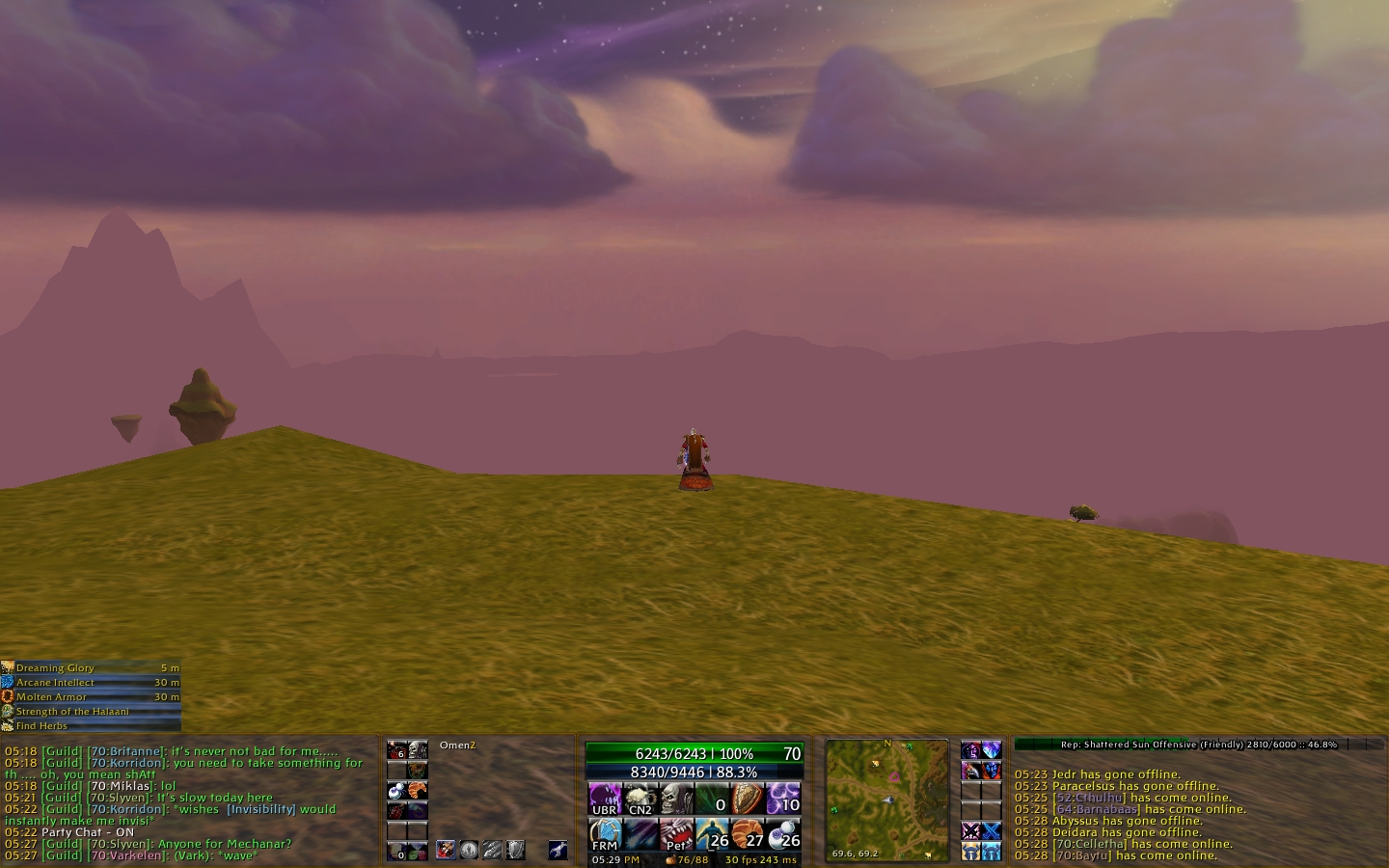
|
With Target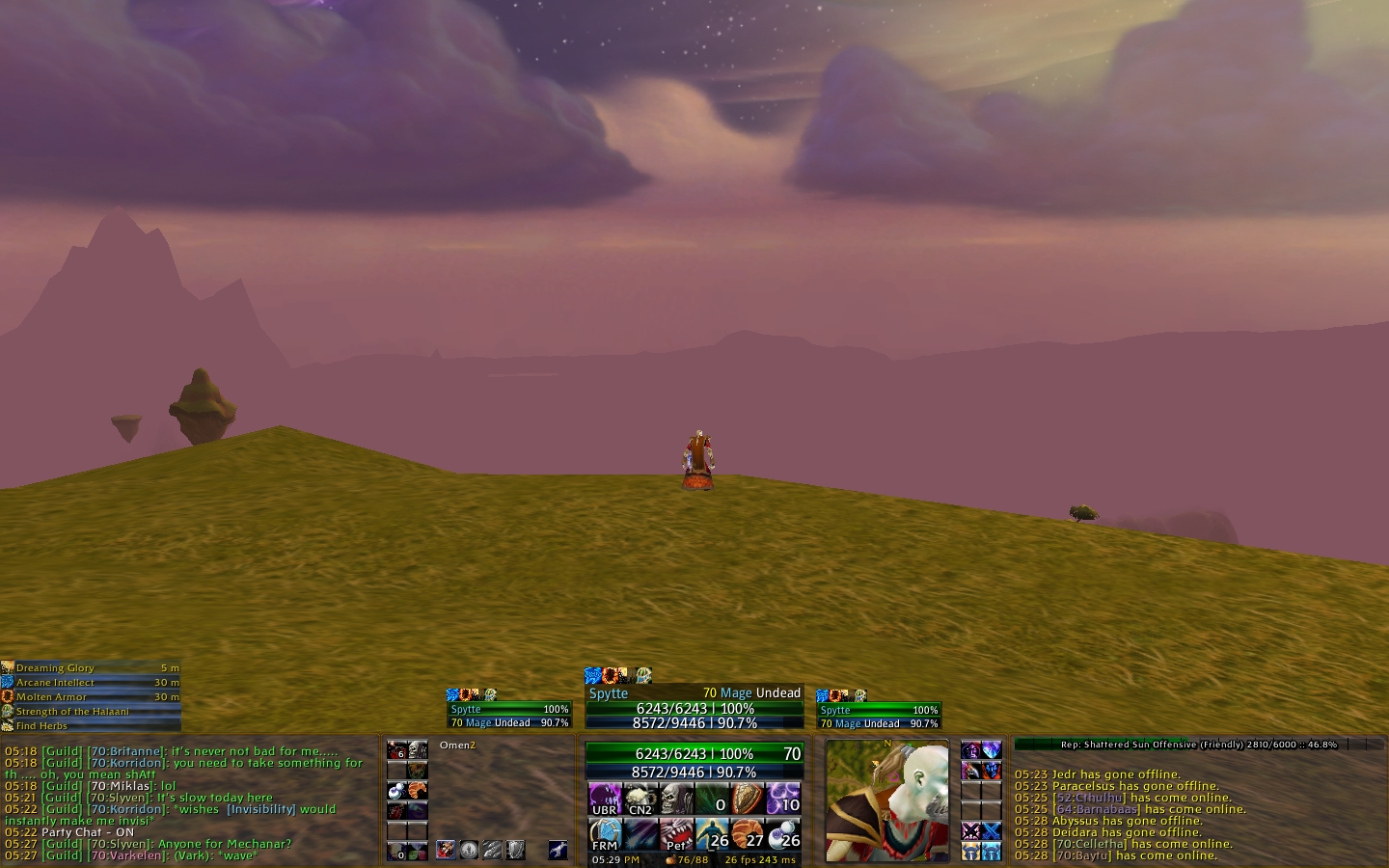
|
In Combat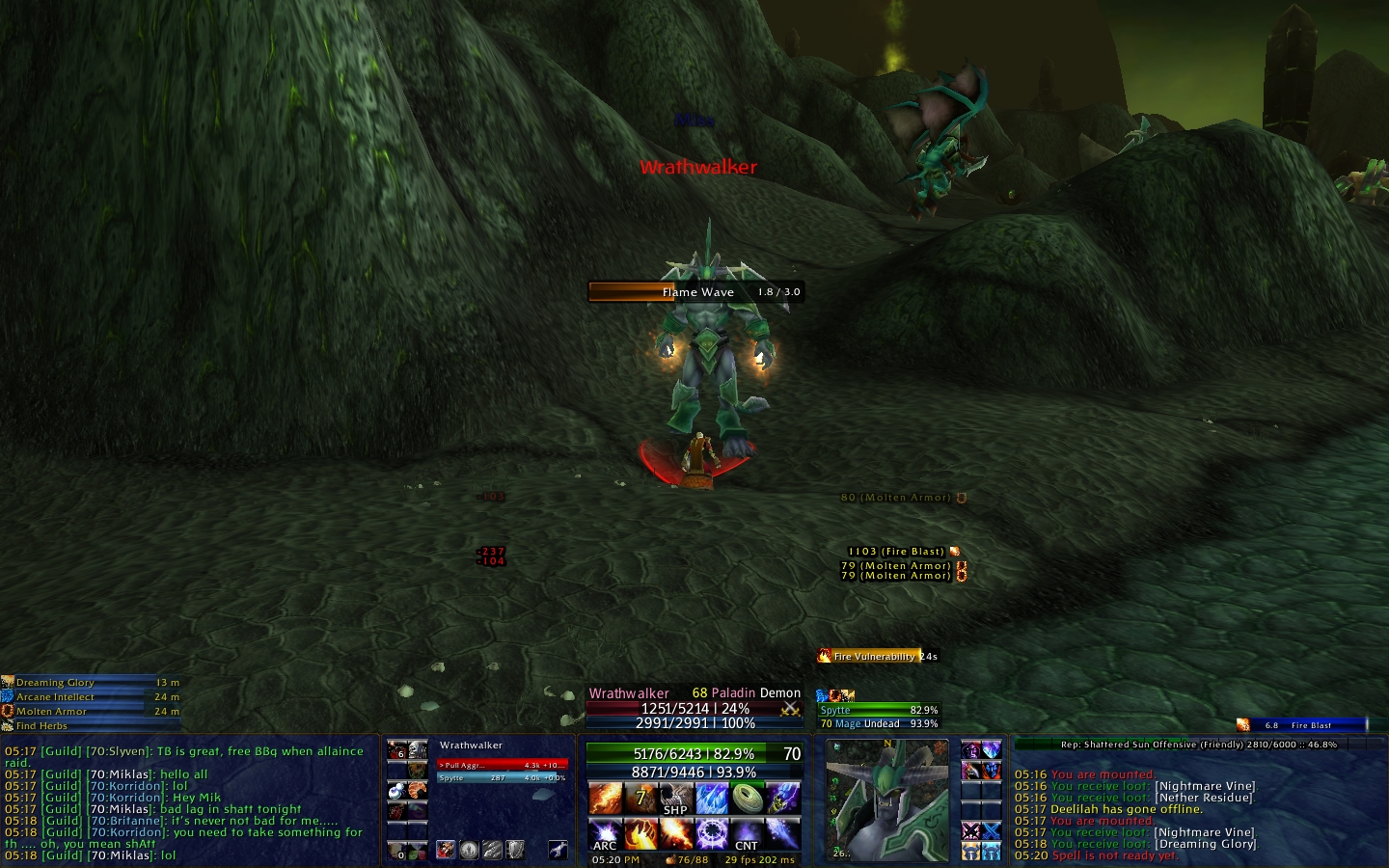
|
Bank and Bags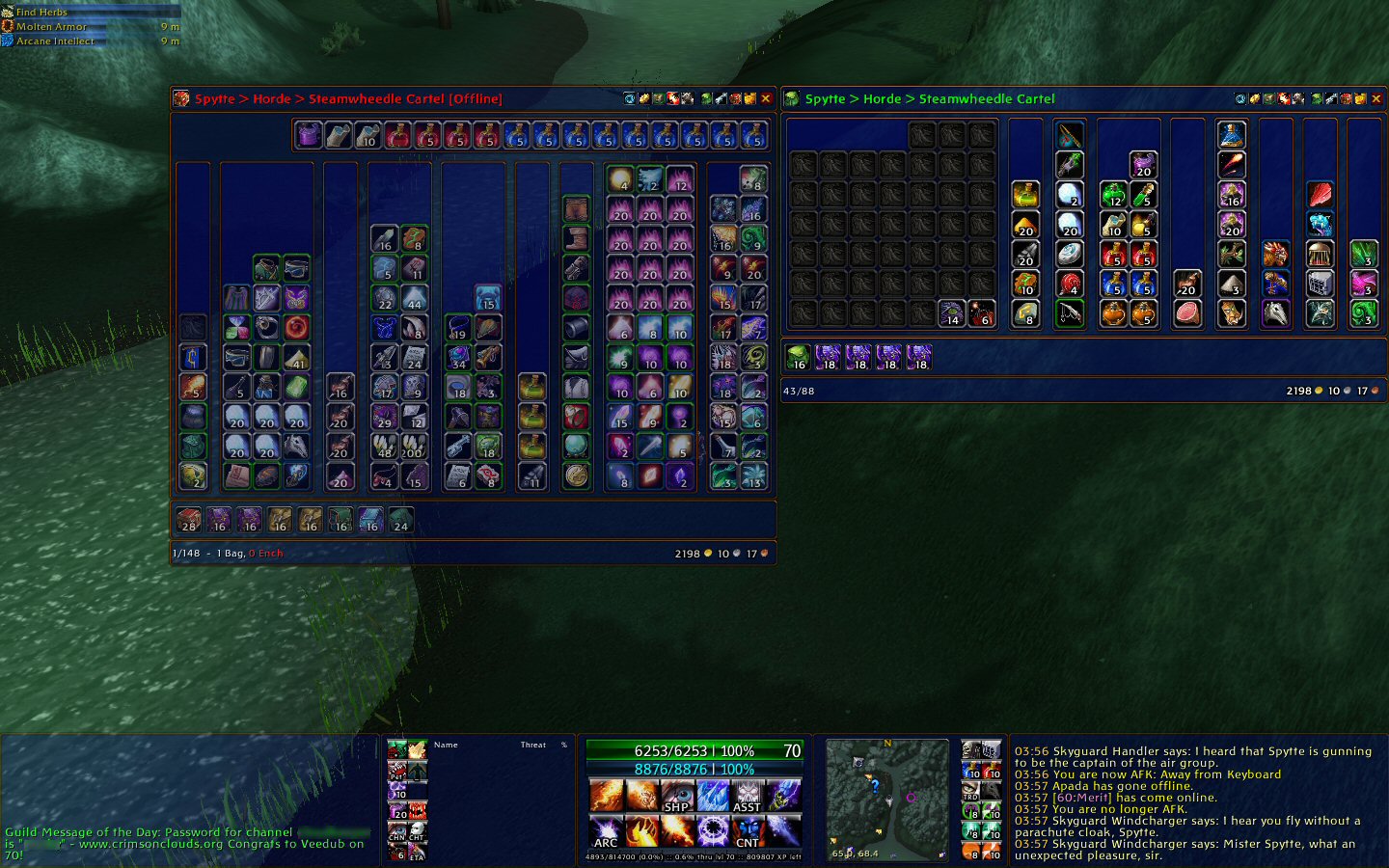
|
Party Frames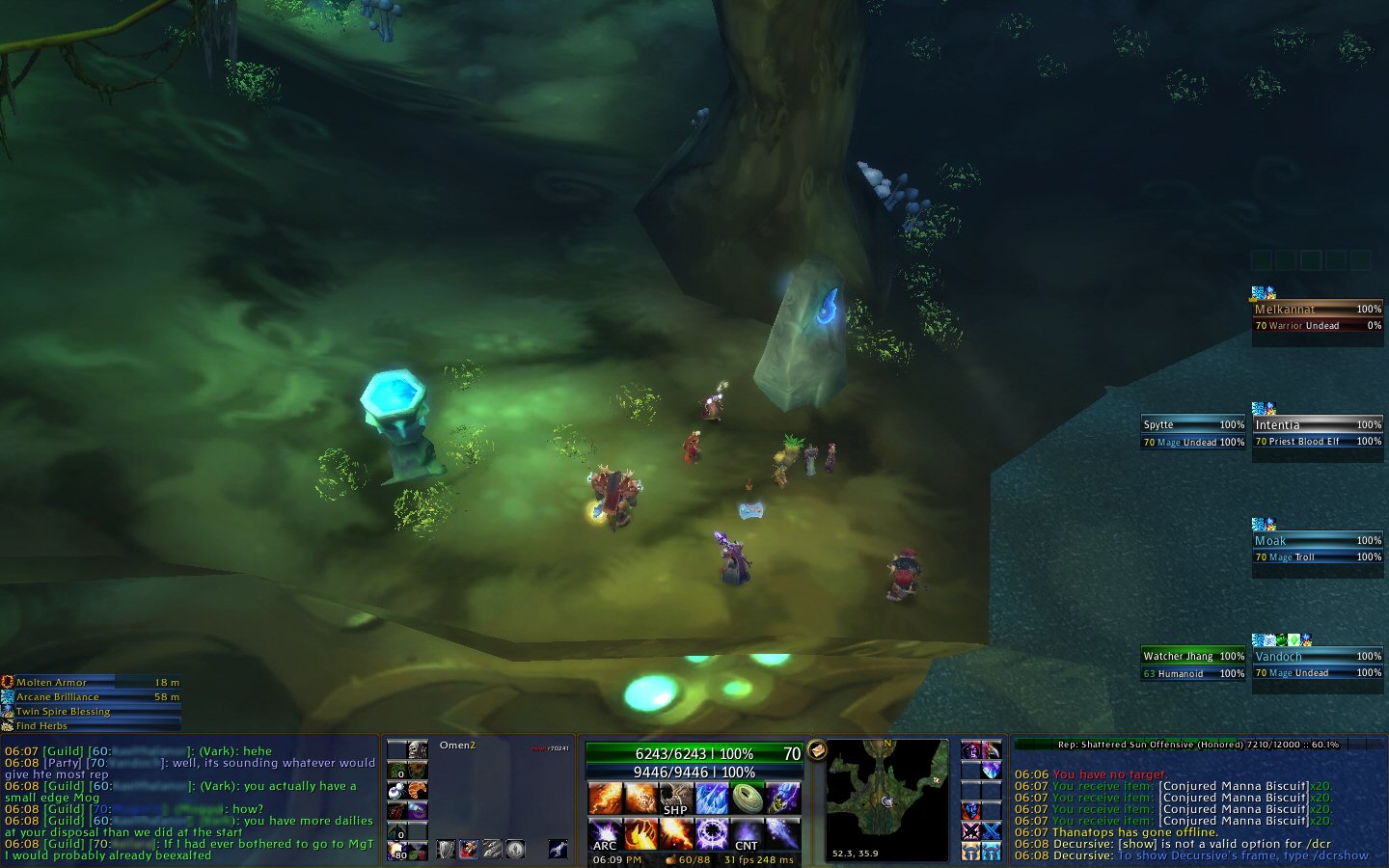
|
Raid Frames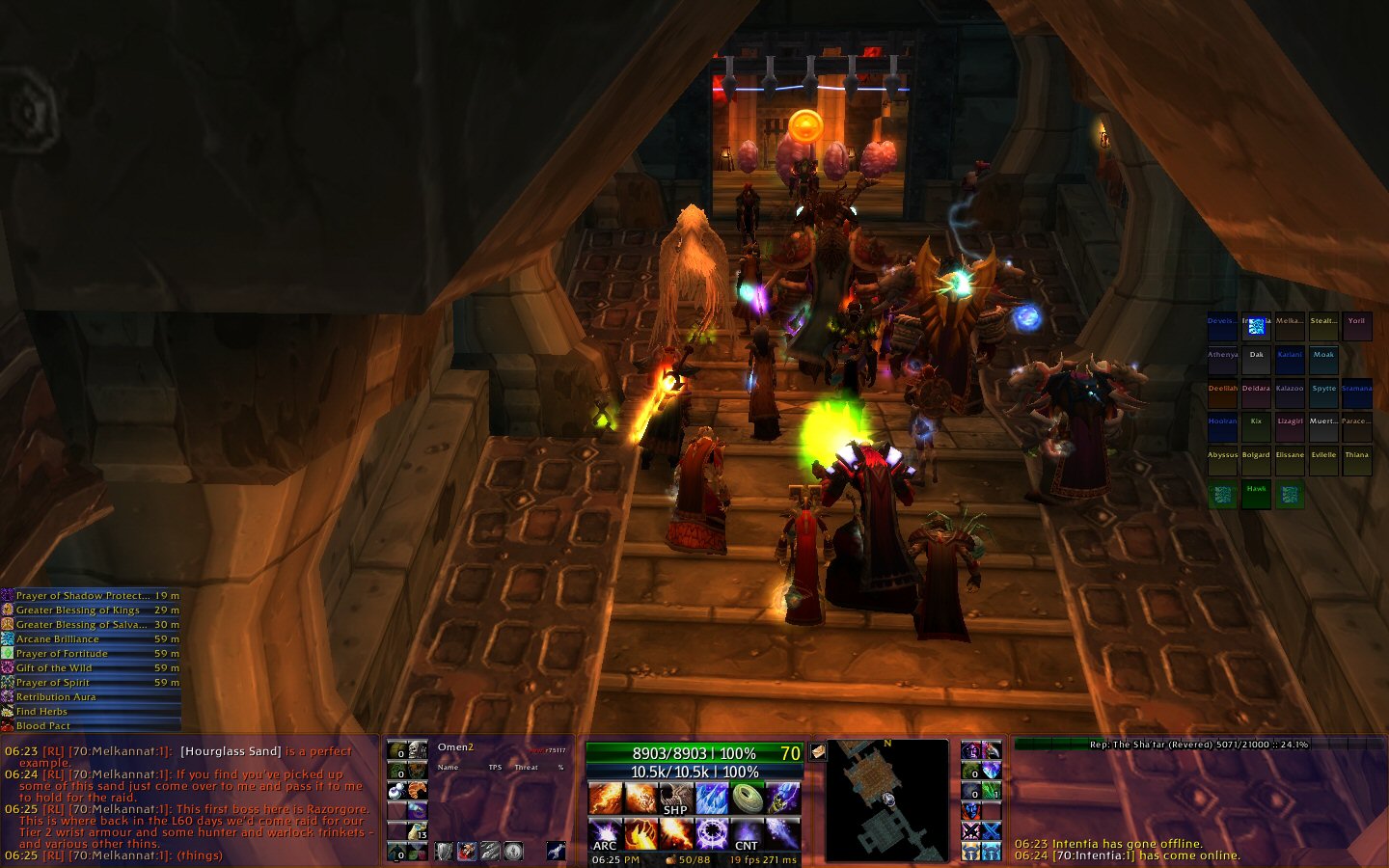
|
With Pet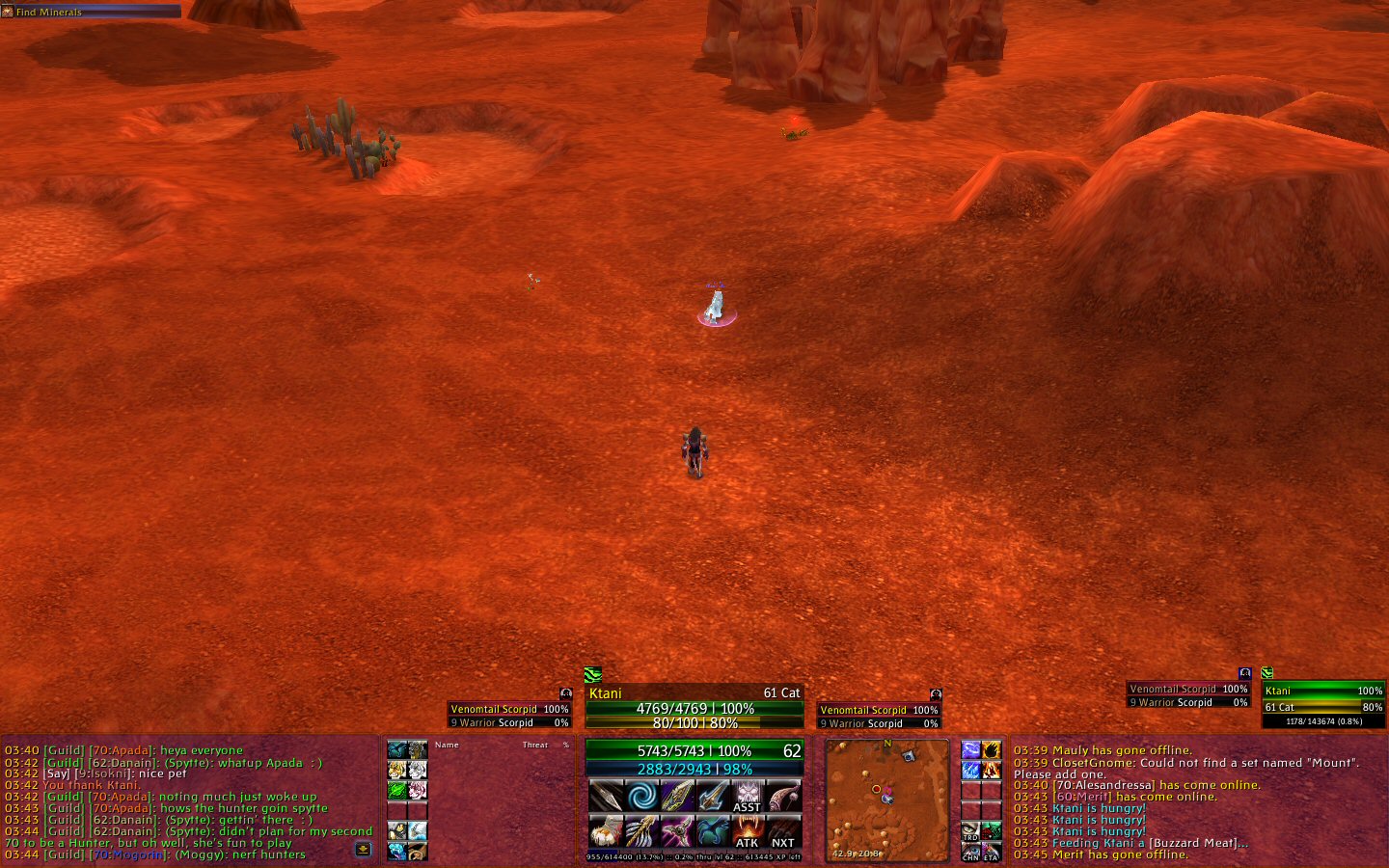
|
Frames Open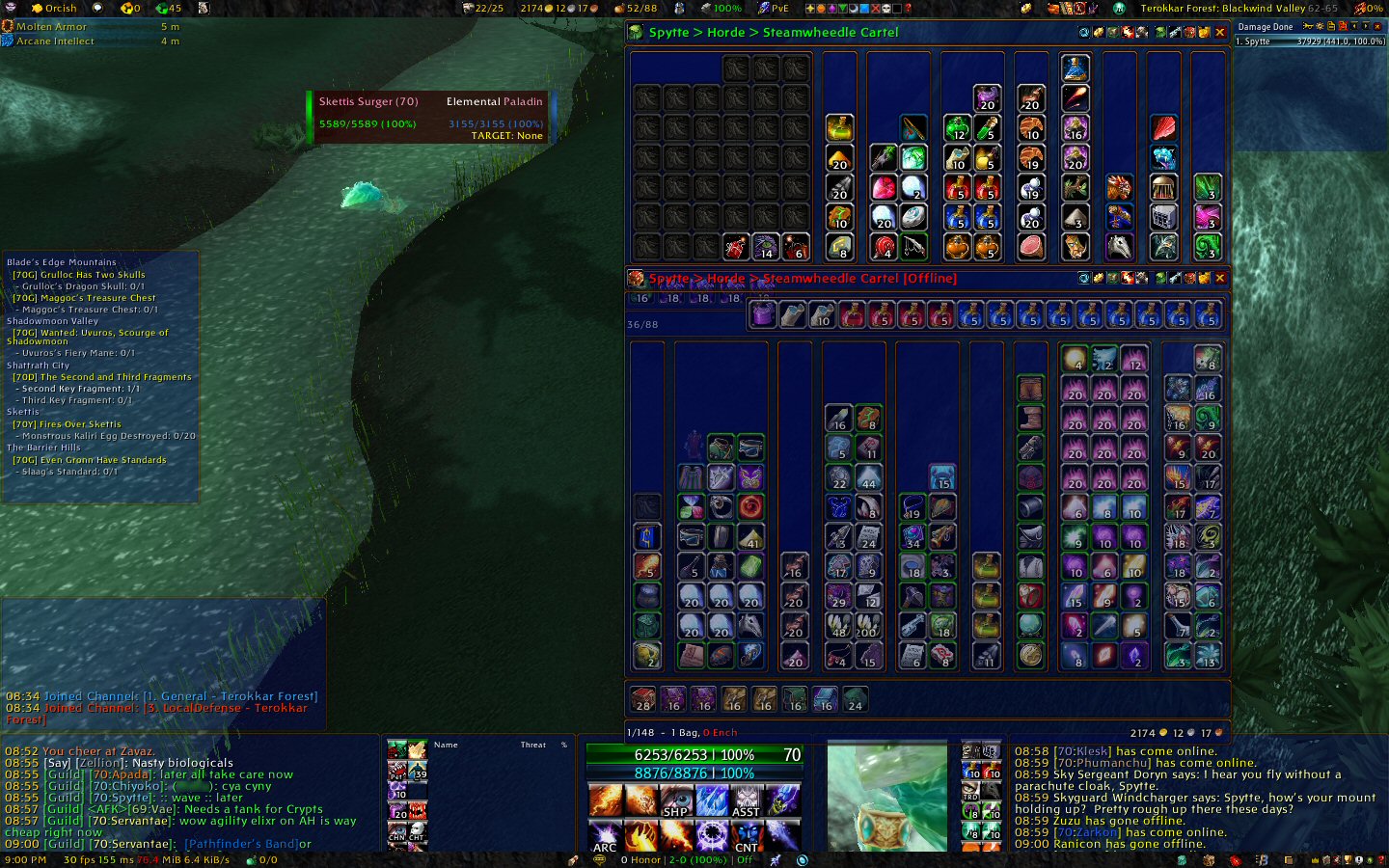
|
List of AddOns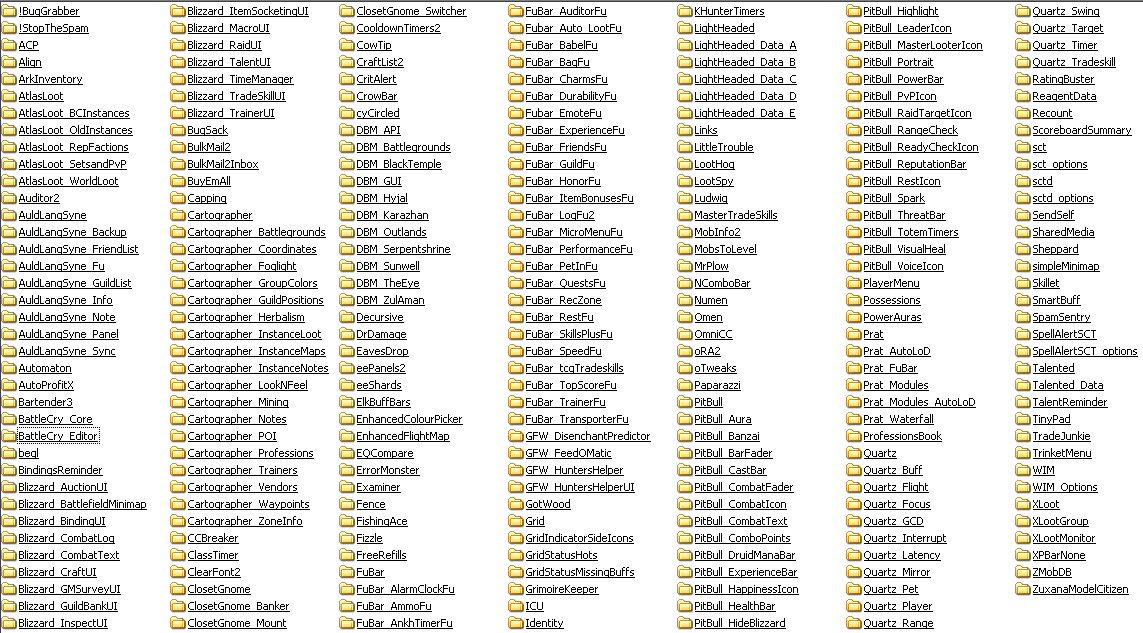
|
Quick Combat Clip (0:44) - version MookUI_08-22-2008 (current version)
A short clip showing the MookUI "in action", to give a feel for how it runs during gameplay.
For clips of older versions, also see Video Clips of Older Versions.
The MookUI compilation contains current versions of roughly 100+ AddOns, listed below.
There are two separate folders in the downloaded .zip file - 'Interface' contains the actual AddOns, 'WTF' contains copies of the AddOn configuration files for use at a resolution of 1440x900 (widescreen) and a UI Scale of 0.64. If you are using different settings, you may want to use just the 'Interface' folder and leave the 'WTF' alone.
Also, there are a lot of AddOns included in this compilation - it's likely that you will not want or need all of them. If it seems a little overwhelming trying to configure them all, it might be easier to just enable a few at a time, then add more as they are configured to your liking. Also see Which AddOns Should I Use? for more information on choosing which AddOns to enable/disable.
I cannot stress this enough. It only takes a few seconds, and in the unlikely event that something goes wrong, or if you simply decide you don't want to use these AddOns, it is much, much easier to restore your original settings than try to recreate them from scratch. All of the folders referred to in this ReadMe are inside your main "World of Warcraft" folder (where you have the game installed), usually something like:
To install the MookUI AddOns, unzip the file "MookUI_xx-xx-xxxx.zip" (the actual file will include a date, like "MookUI_03-26-2008.zip") to your hard drive - inside you will find two folders (in addition to the "MookUI_readme.txt" file, and an internet shortcut to this document):
You will need to change the names of some of the folders.
My final folder structure would look like this:
From the Character Select screen, click the 'AddOns' button and check 'Load out of date AddOns'. Then from the list, disable any AddOns you won't be using (see the Which AddOns Should I Use? section for more help with this). Finally, click the 'Enter World' button - your screen should look something like this:
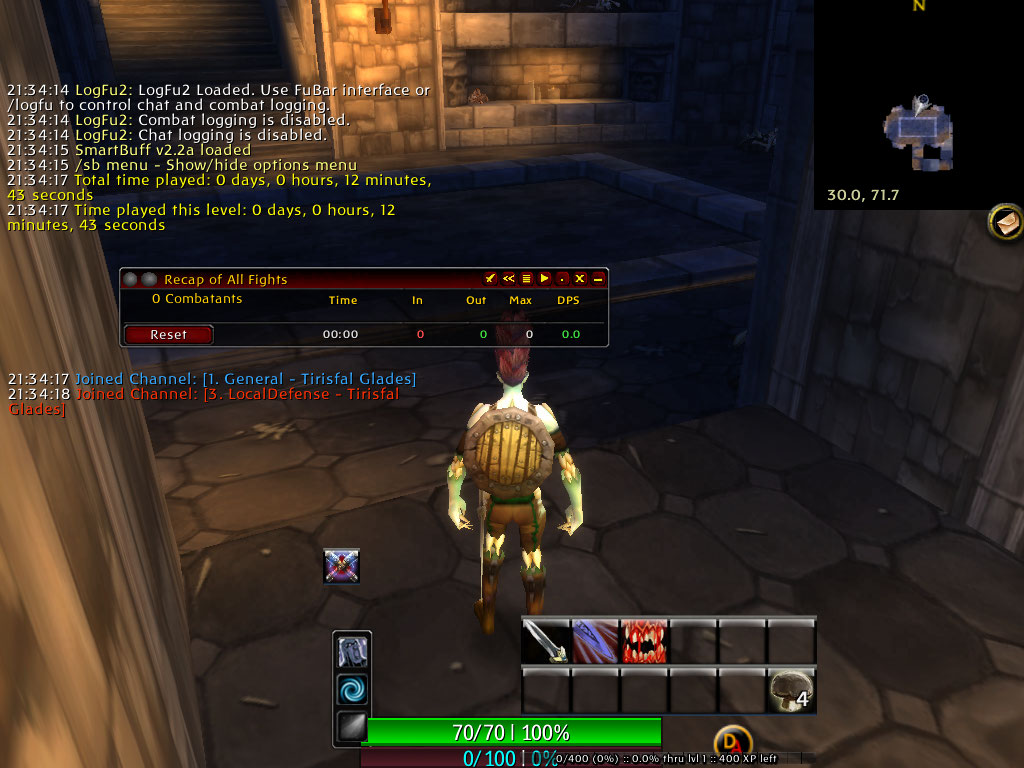
To adjust the resolution and UI Scale, hit 'ESC' and go to the 'Video Settings'; choose a resolution of 1440x900, check the 'Use UI Scale' box, and drag the scale slider all the way left to 0.64. Hit 'Okay' and the game will reload - your screen should then look like this:
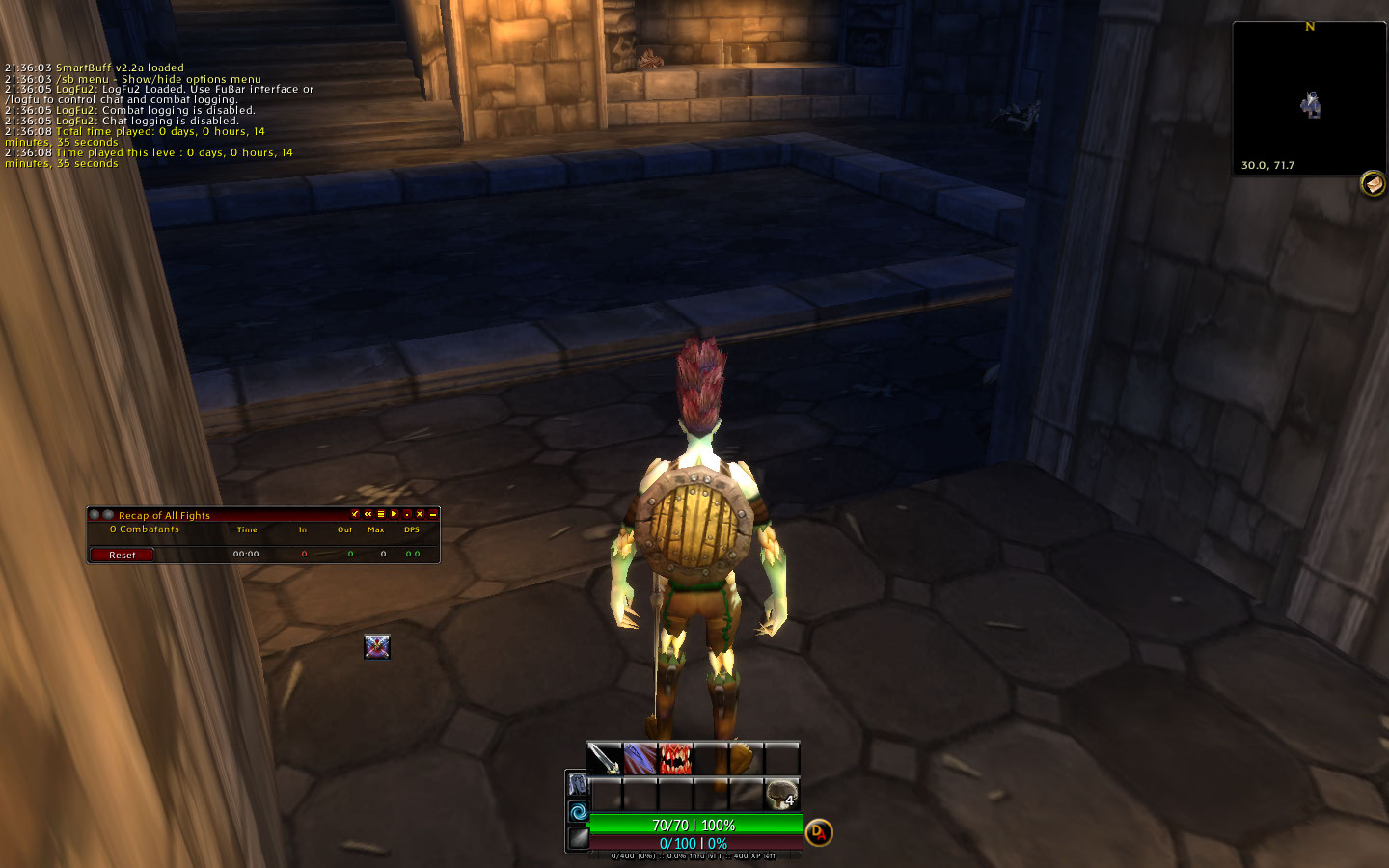
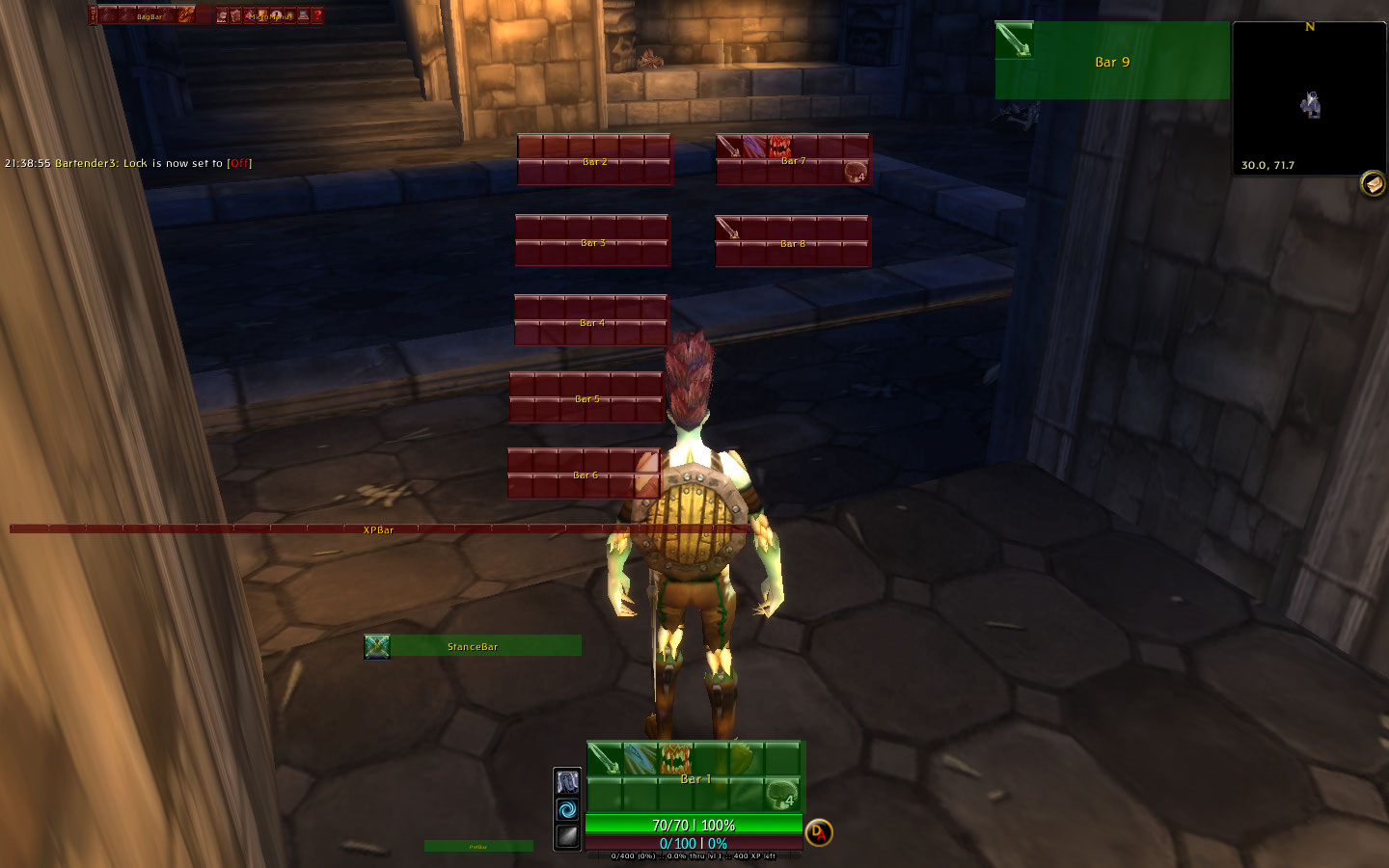
To get rid of the Recap window, click the 'X' on its title bar - you can reopen it at any time by typing "/recap" (NOTE: Recap is no longer included with MookUI as of version 03-26-2008). To see all the Bartender3 bars, type "/bt3 lock" - you can then reposition the Stance Bar (or any others) by dragging them, then type "/bt3 lock" again to lock them in place. Here's the screen with all bars shown:
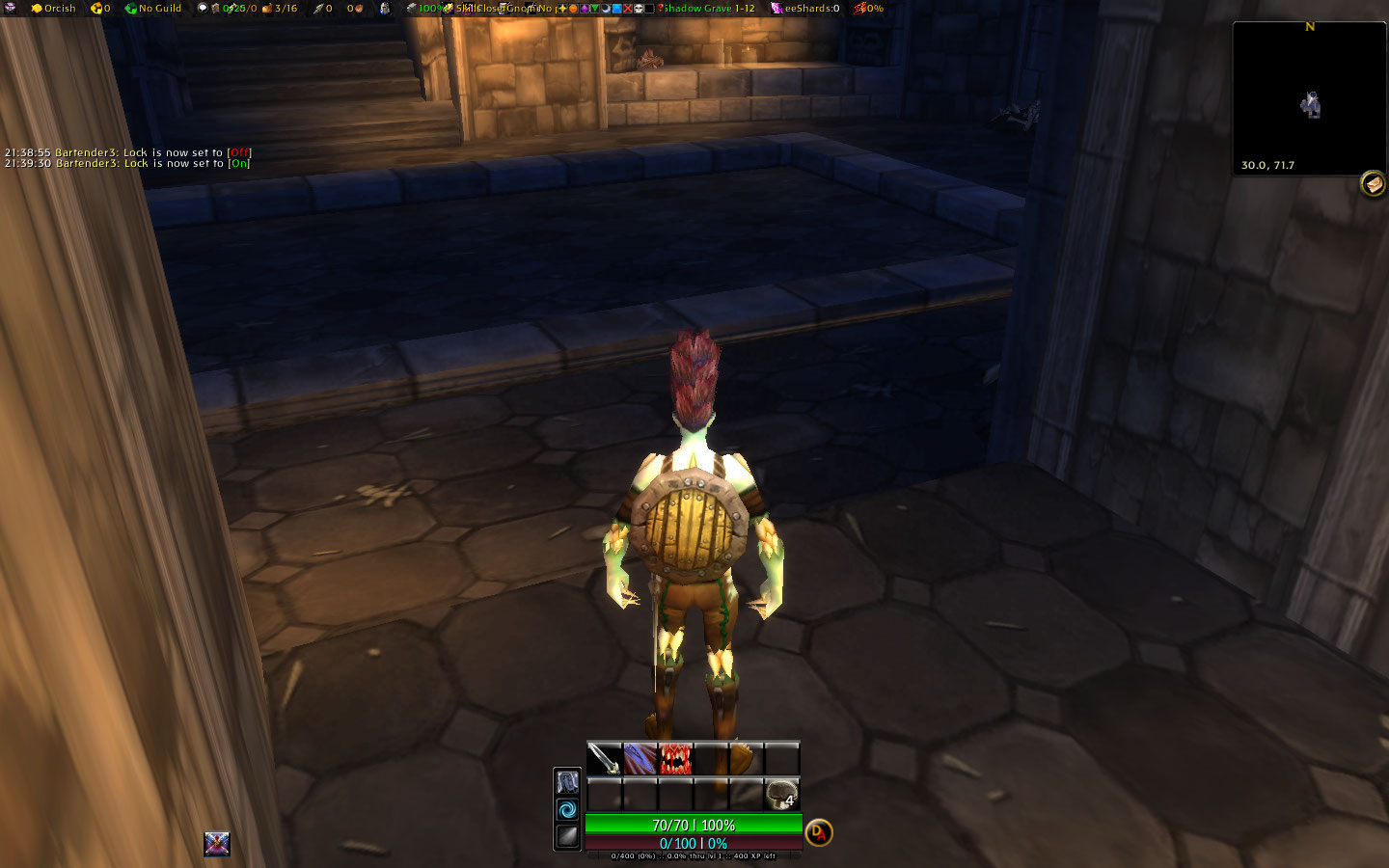
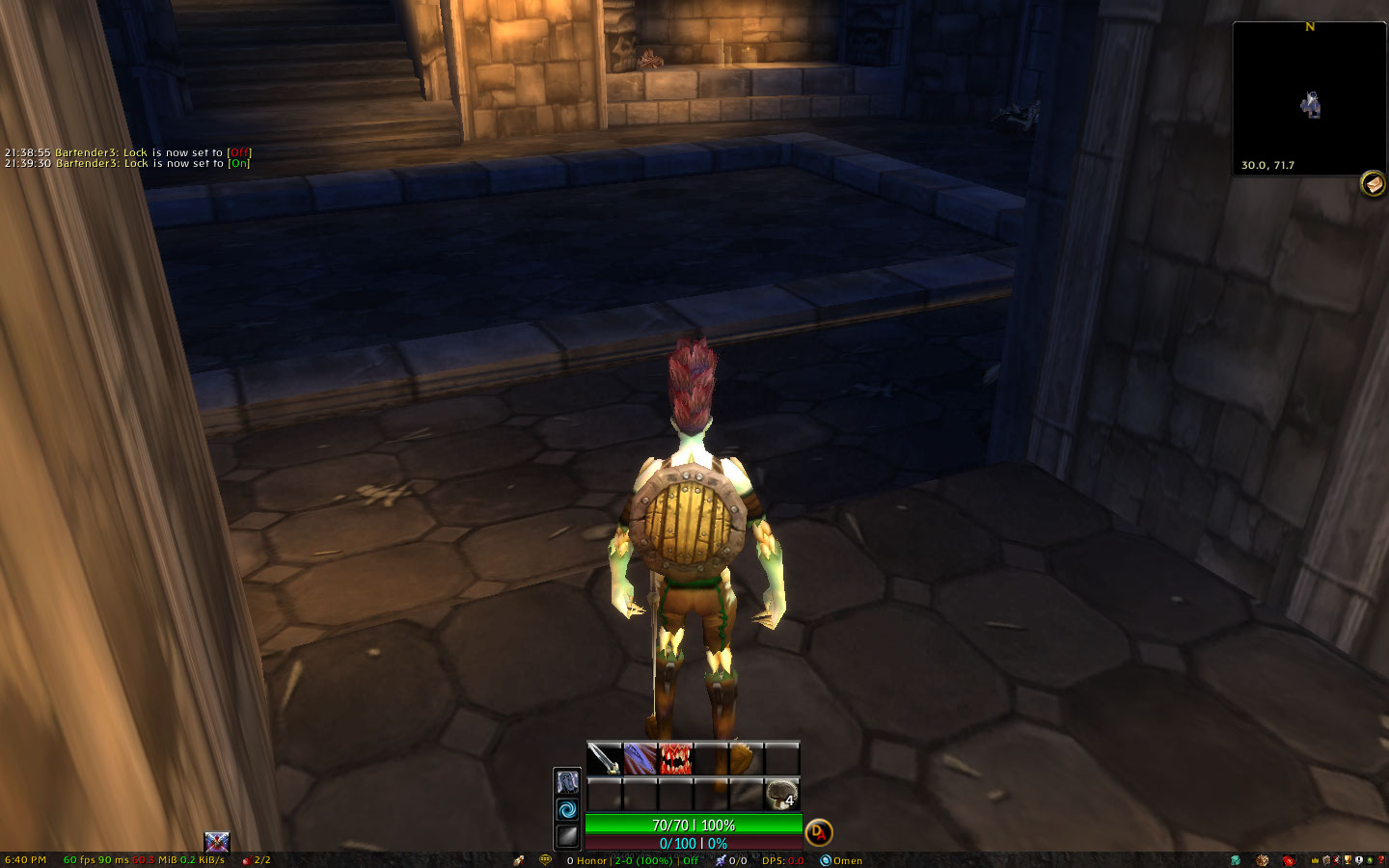
The top and bottom FuBars may not be as wide as the screen yet - to drag them wider, position the cursor over the right-hand end of the bar until the cursor becomes a sword - you can drag the bars even if they are not visible, as long as you keep the left button held down - here's a picture of the top FuBar before resizing, and the bottom FuBar after resizing:
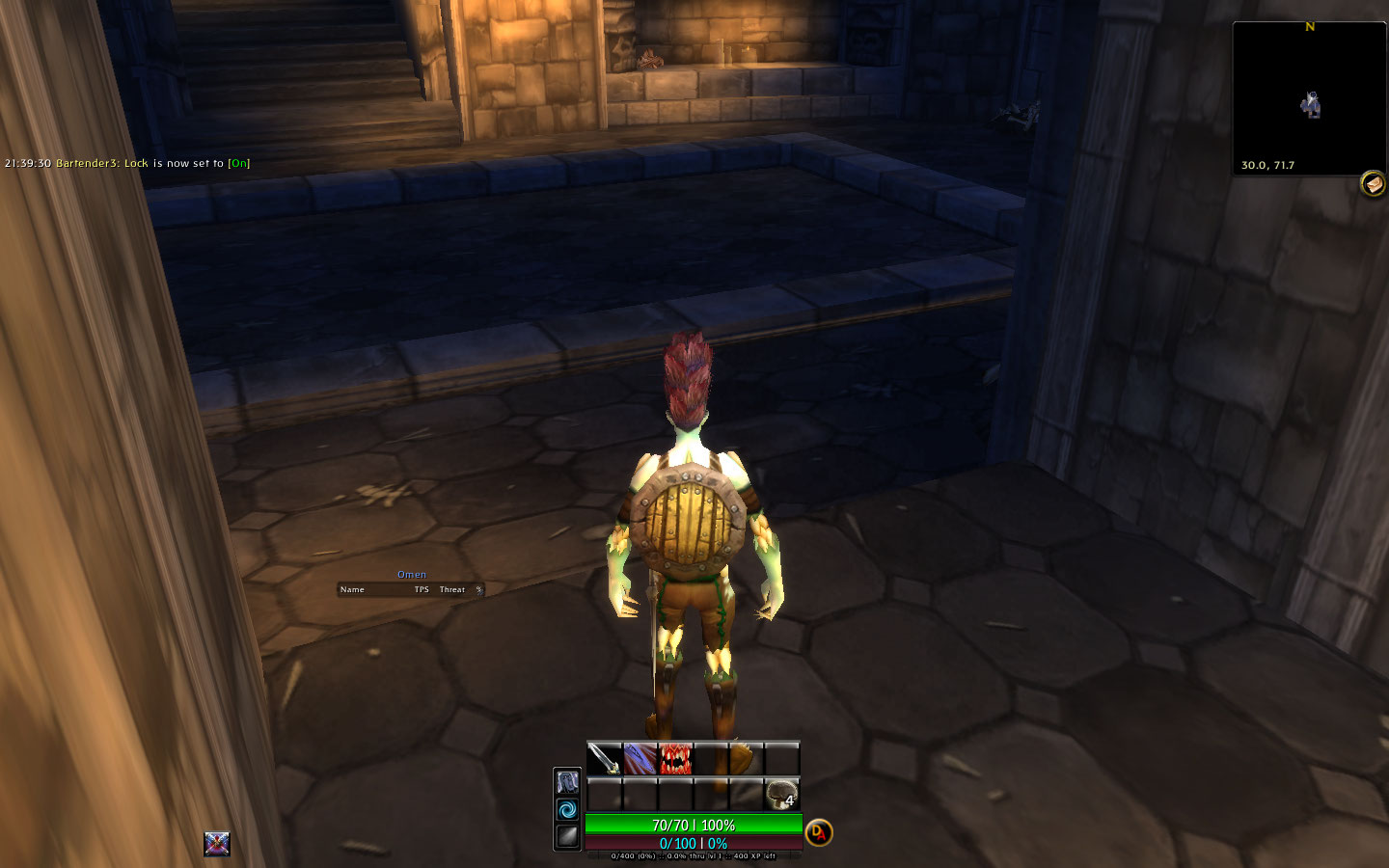
To move the Omen threat frame, click 'Omen' on the bottom FuBar and it will appear - you can then drag it wherever you like:
And that's it! You may need to tweak a few AddOns as you go, but for the most part you're done. Your screen should look like this:
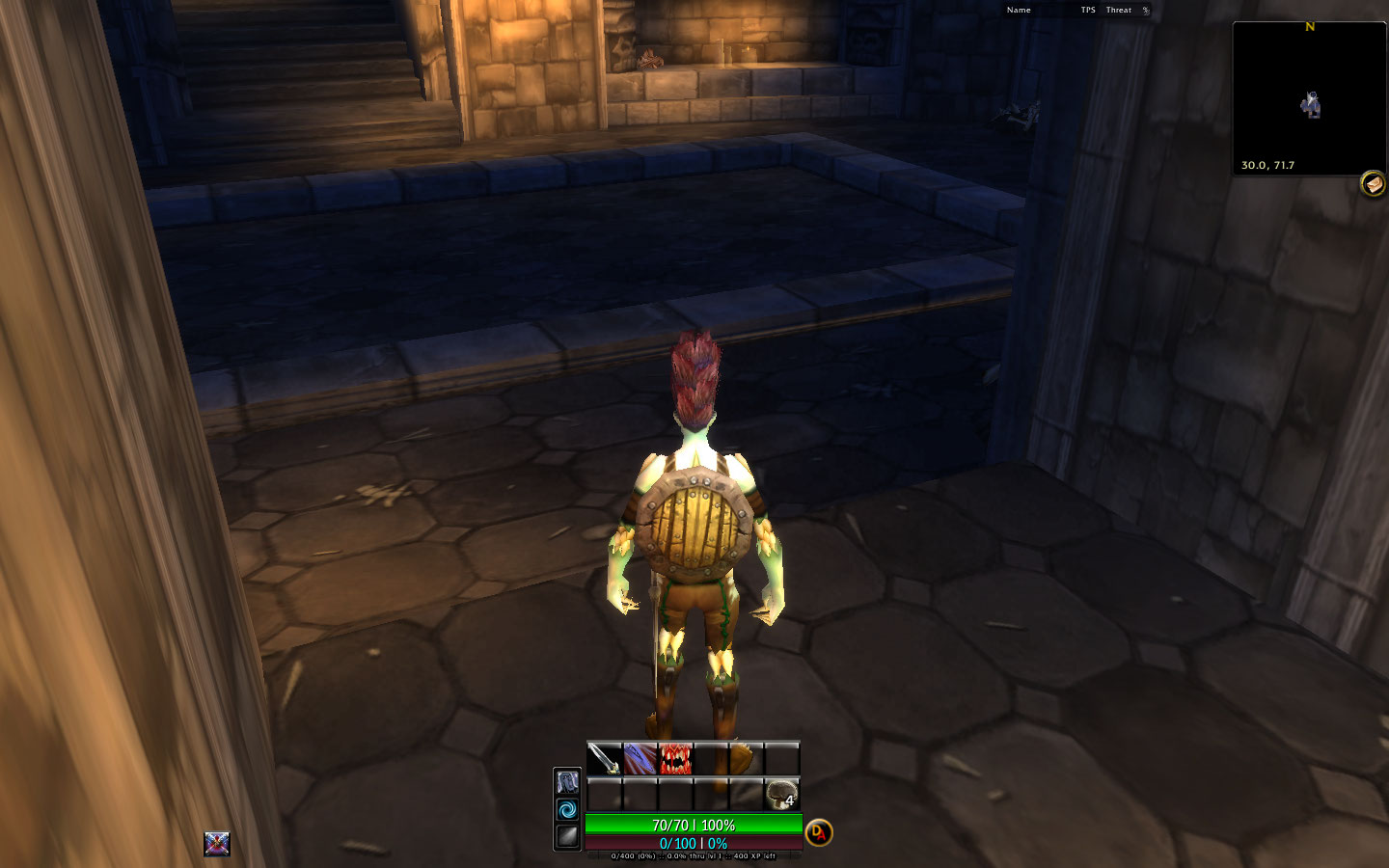
If you do have any problems, be sure to check the Frequently Asked Questions (F.A.Q.) and Known Issues. You can also post to the MookUI Support Forum if your question isn't covered in the ReadMe.
Without using the included WTF folder you'll need to configure the AddOns manually. It is entirely possible to recreate the look of the MookUI as seen in various screenshots by configuring things yourself (after all, that's how I created the MookUI in the first place!), but it takes a little work.
Assuming you're already using a widescreen resolution and/or UI Scale of 0.64, your screen should look something like this when you first log in - don't panic, it looks like a huge mess but it's pretty simple to clean up:
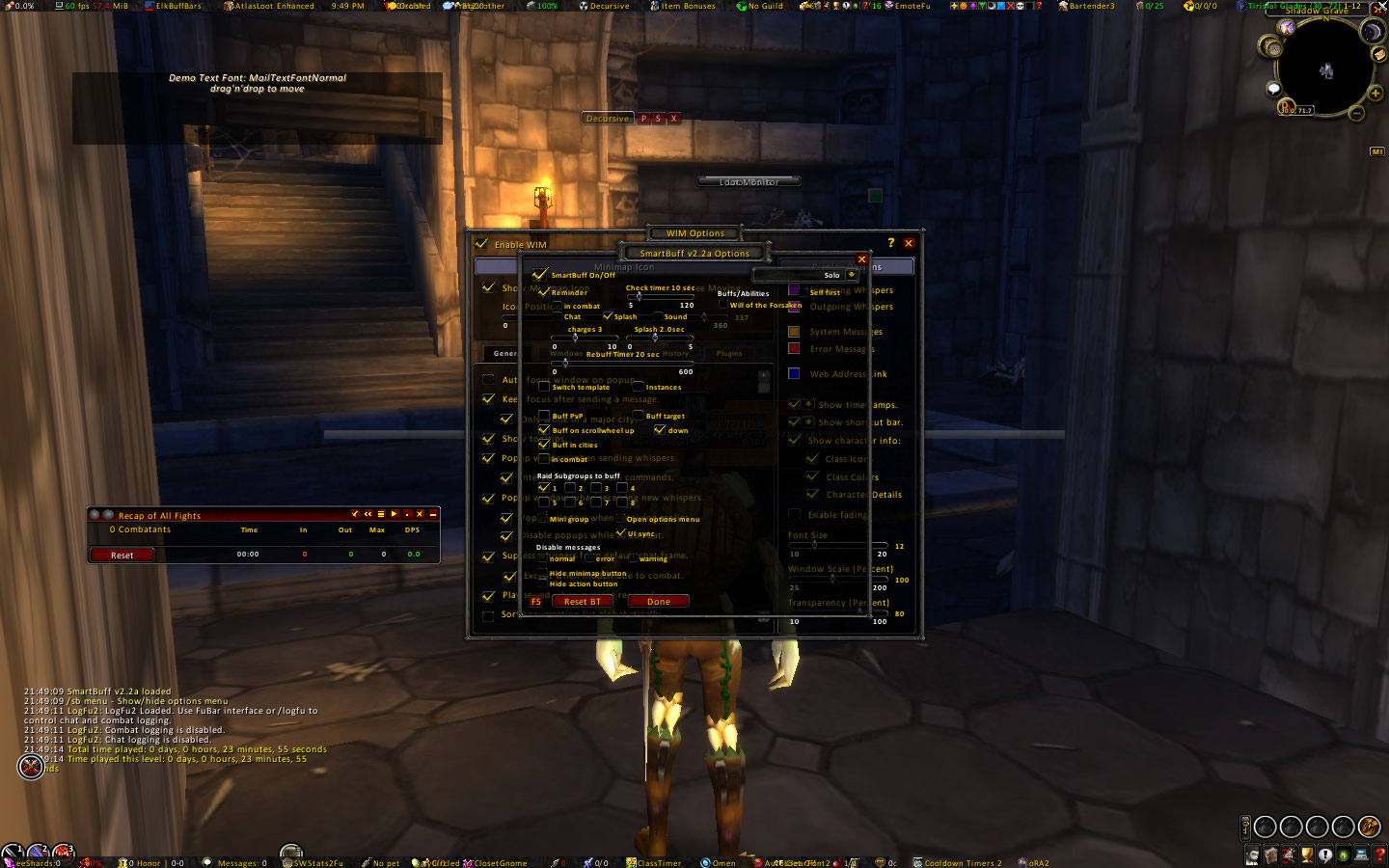
To get rid of the Recap window, click the 'X' on its title bar - you can reopen it at any time by typing "/recap" (NOTE: Recap is no longer included with MookUI as of version 03-26-2008); to close the WIM options window, click the outermost 'X' on its window - you can reopen it at any time by typing "/wim":
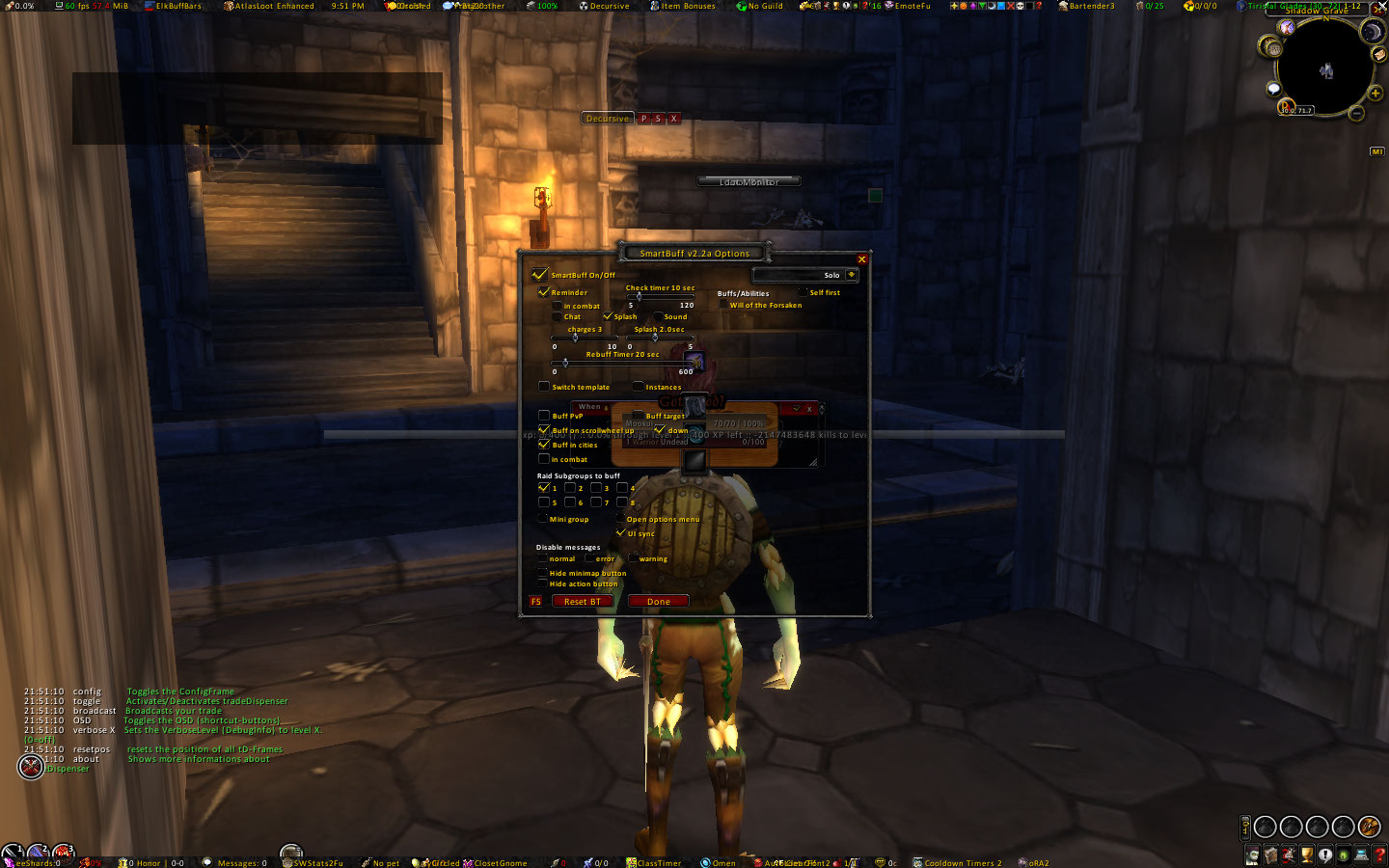
Before closing the SmartBuff v2.2a Options window, check the 'Hide action button' box and the 'Hide minimap button' box; then drag the window that reads "Demo Text Font: MailTextFontNormal" to where you want the SmartBuff alerts to appear; finally, click the 'FS' button to cycle through alert fonts and sizes until you find the one you want, then click the 'X' on the options window to close it - you can reopen it at any time by typing "/sb menu":
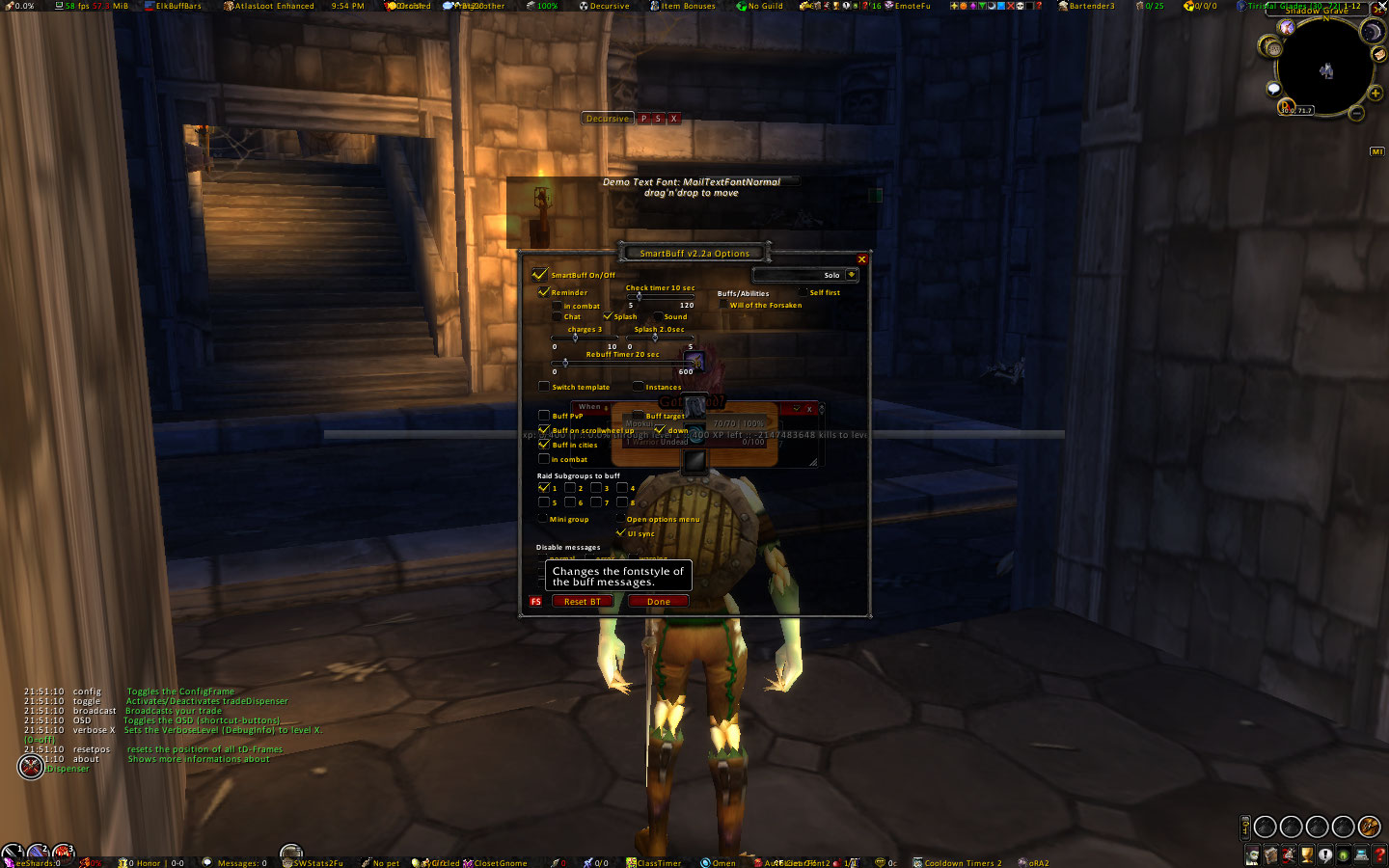
To make a little "room", drag the 'GotWood?' frame, the TradeDispenser bar, and the XPBarNone bar out of the way:
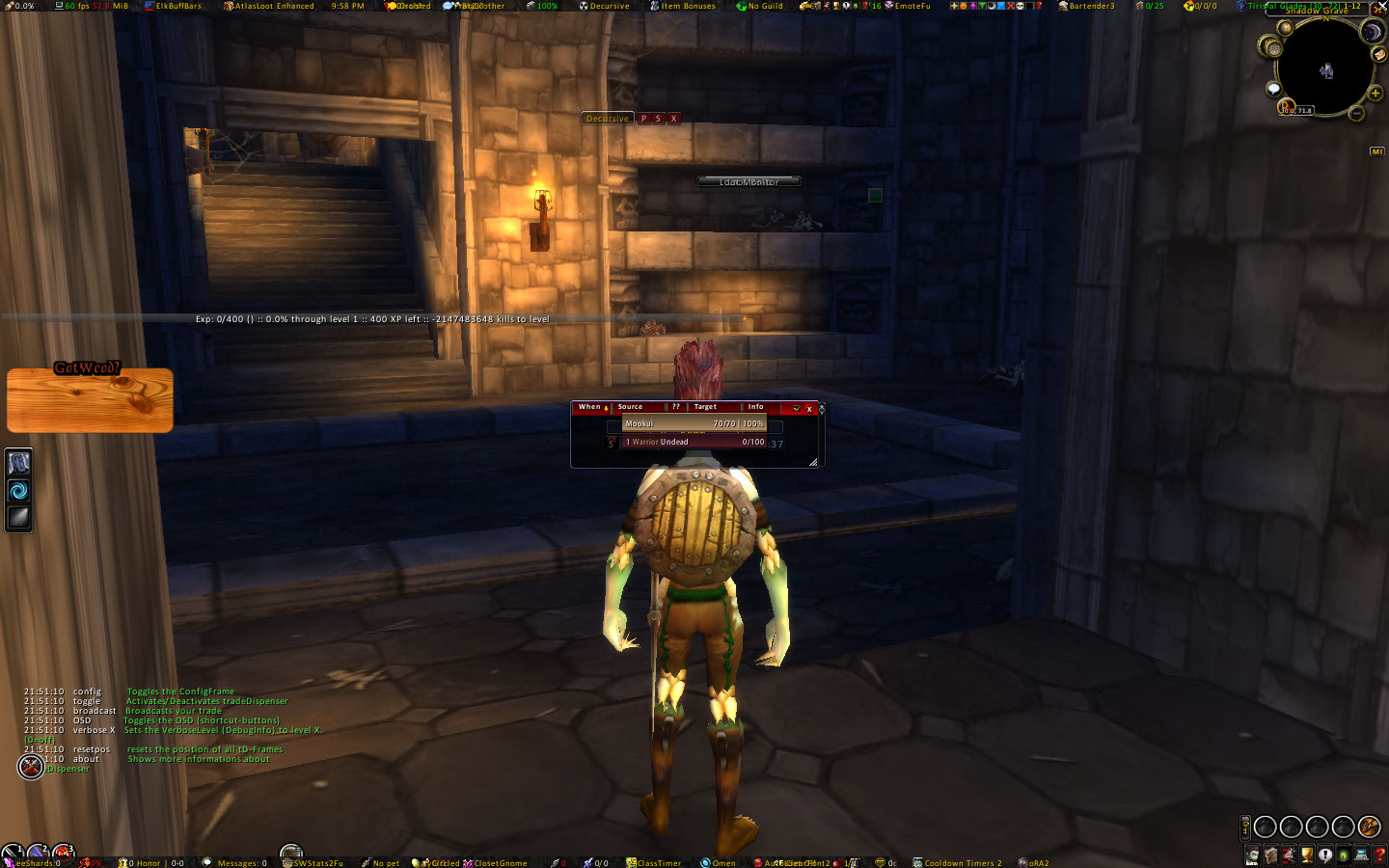
Next, drag your PitBull Player unit frame down out of the way; click it once to target yourself, then drag your Target and Target of Target unit frames down as well. There are a lot of PitBull options, so you can customize your unit frames to your heart's content once everything else is good to go:
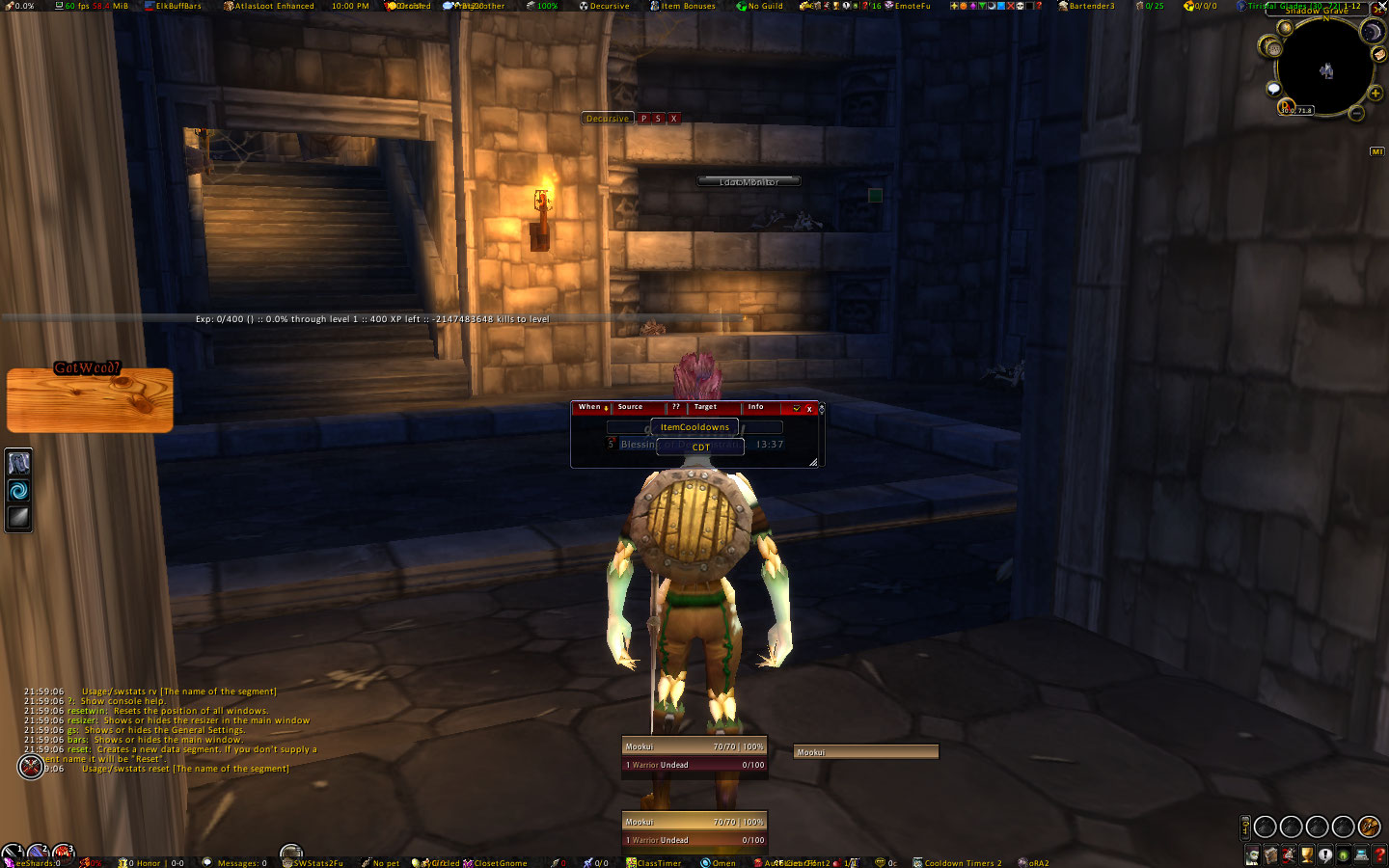
Now drag the Item Cooldowns and CDT frames down out of the way - you can Alt-left click to display test bars on each, position them where you want, then Alt-left click again to hide the test bars, and, finally, Shift-left click to hide the frame anchors:
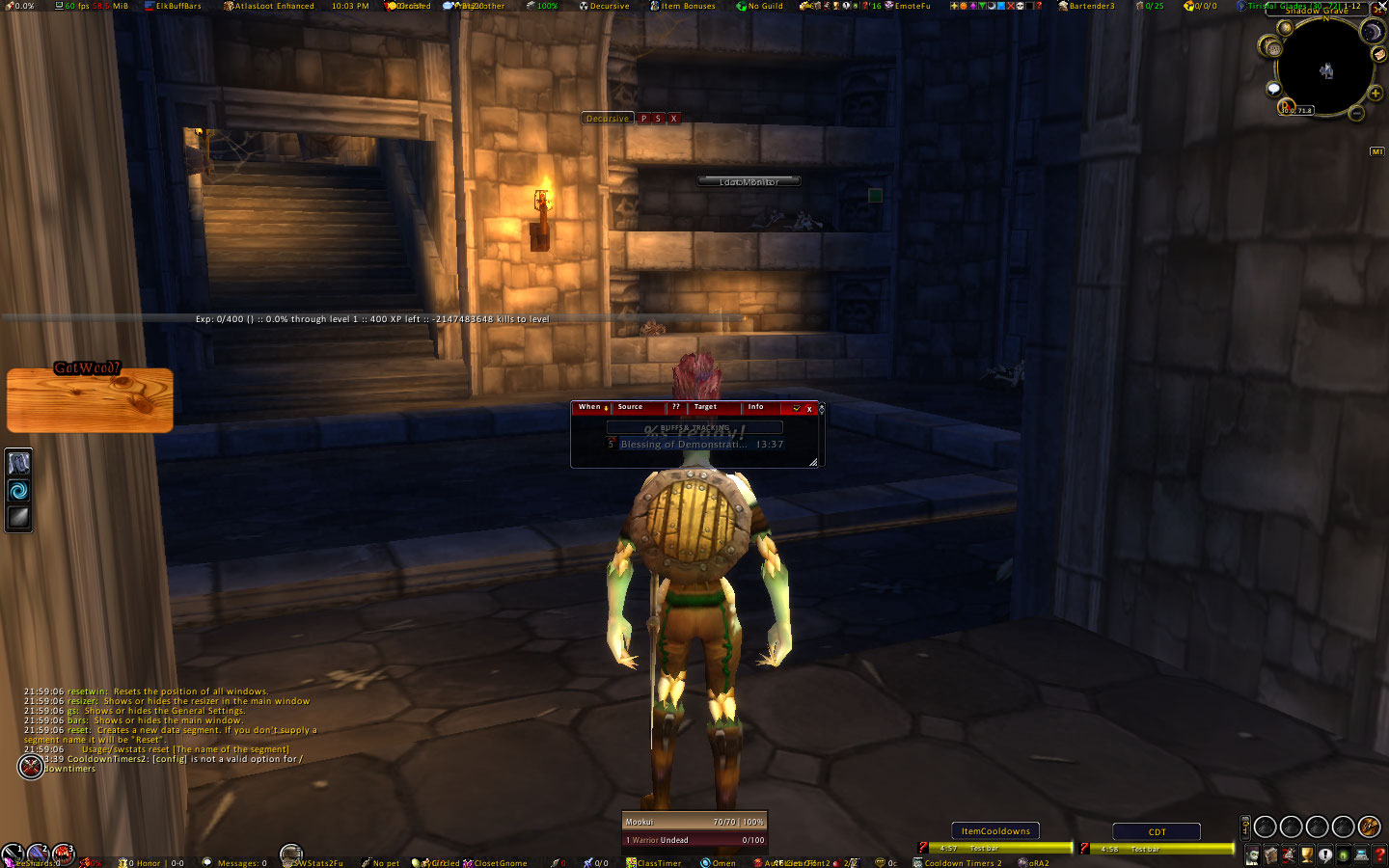
To hide the SWStats frame in the center of the screen (the one with the red header bar), click the 'X' (NOTE: SWStats is no longer included with MookUI as of version 01-04-2008).:
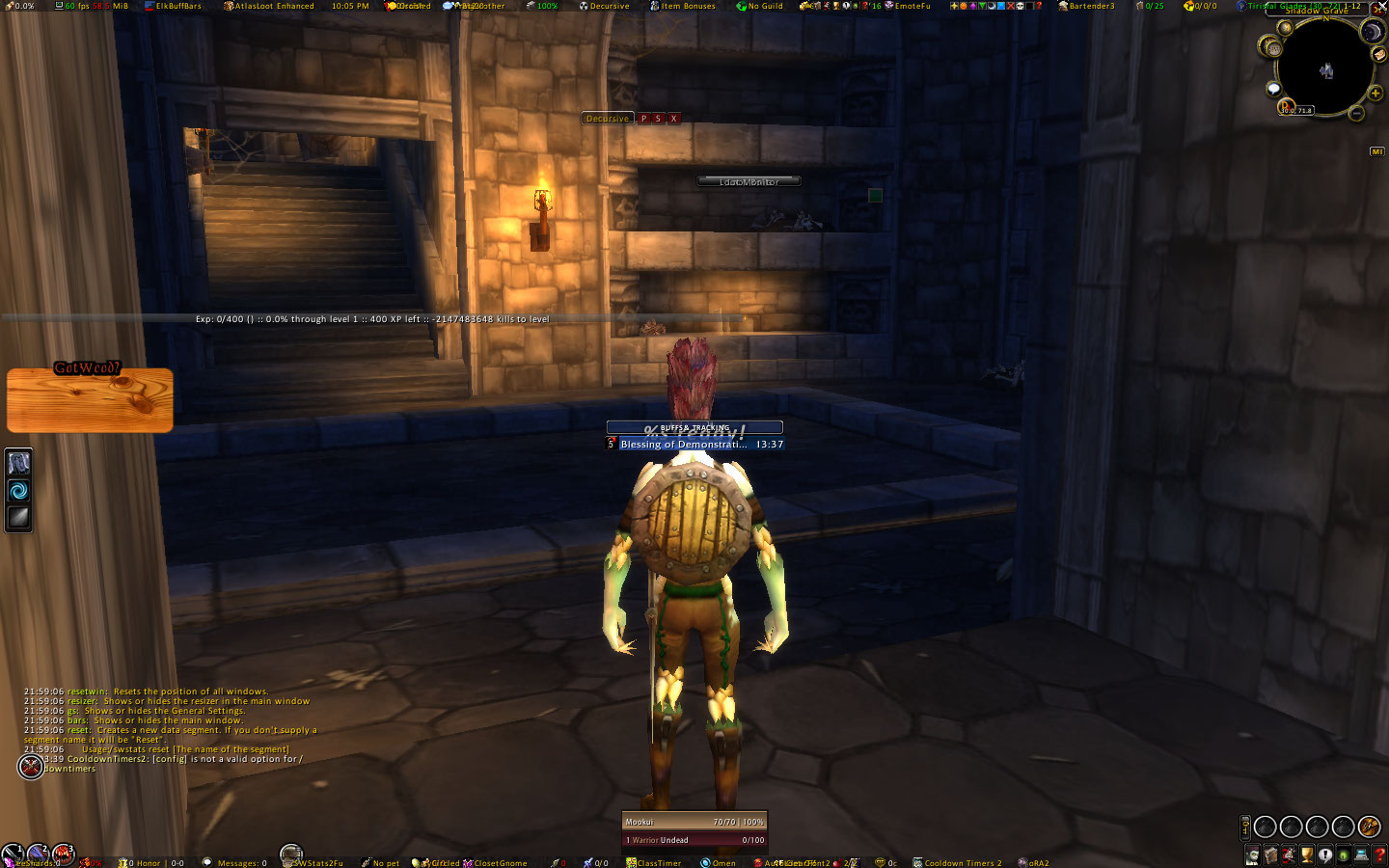
Then, drag the ElkBuffBars frame where you want them ("Buffs & Tracking"), right-click the anchor bar, and uncheck the 'Show Anchor' box:
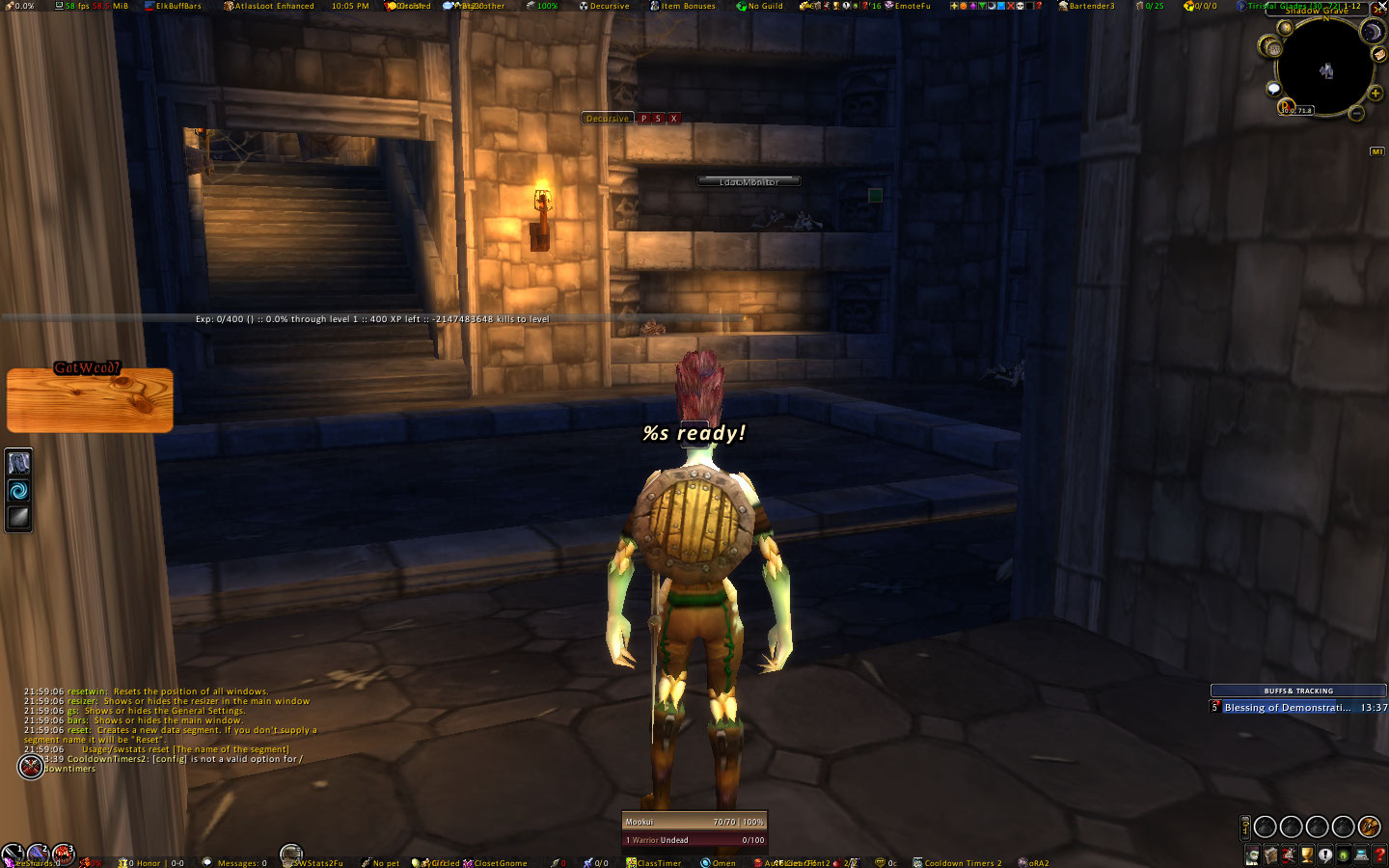
Drag the CooldownTimer alert frame ("%s ready!") where you want it, then Shift-left click to lock and hide:
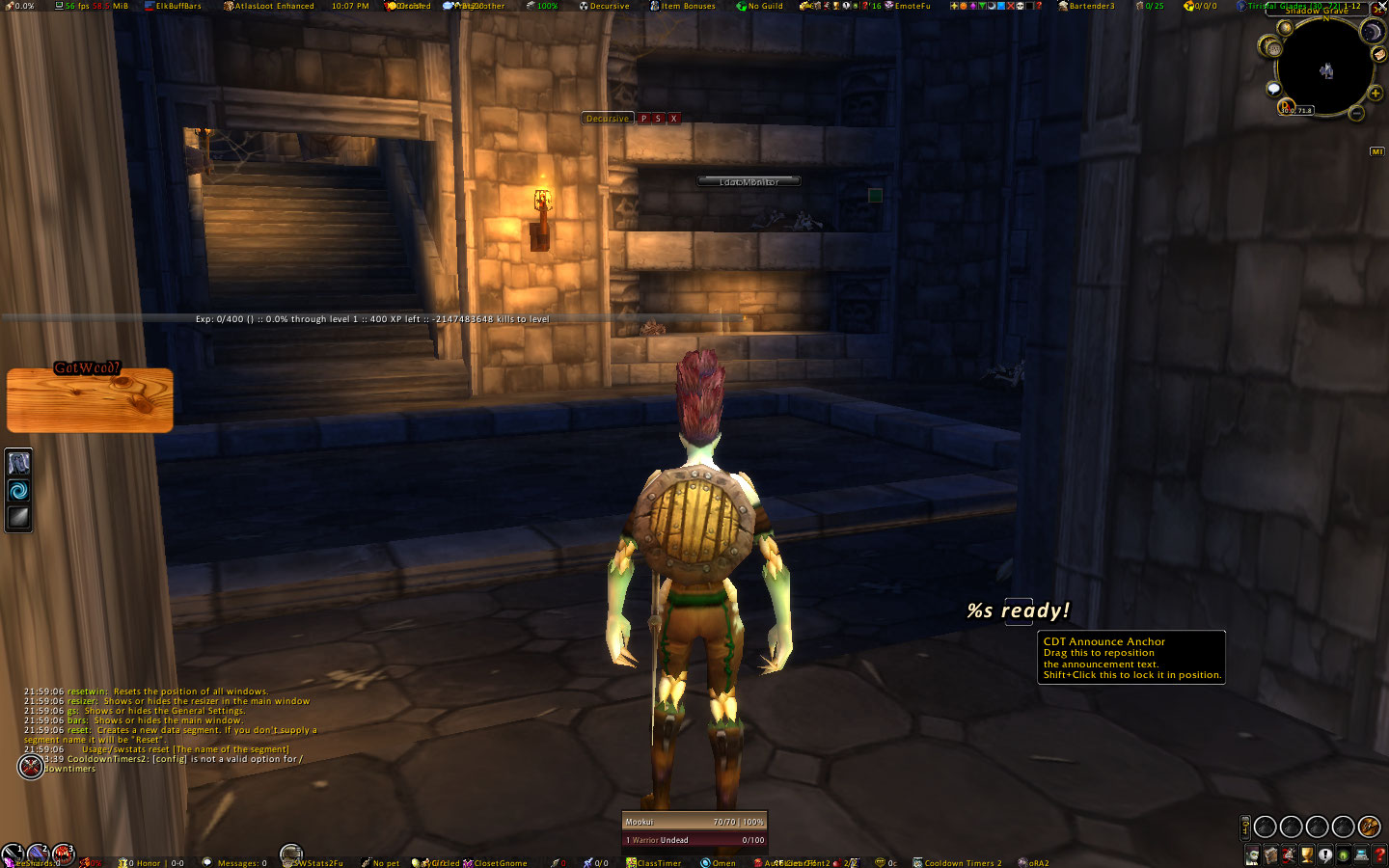
For Decursive, drag the Decursive frame where you want it, then click the 'X' to hide - you can reopen it at any time by typing "/dcrshow". Then drag the Decursive Miniunitframe by Alt-left clicking the small blue box above it:
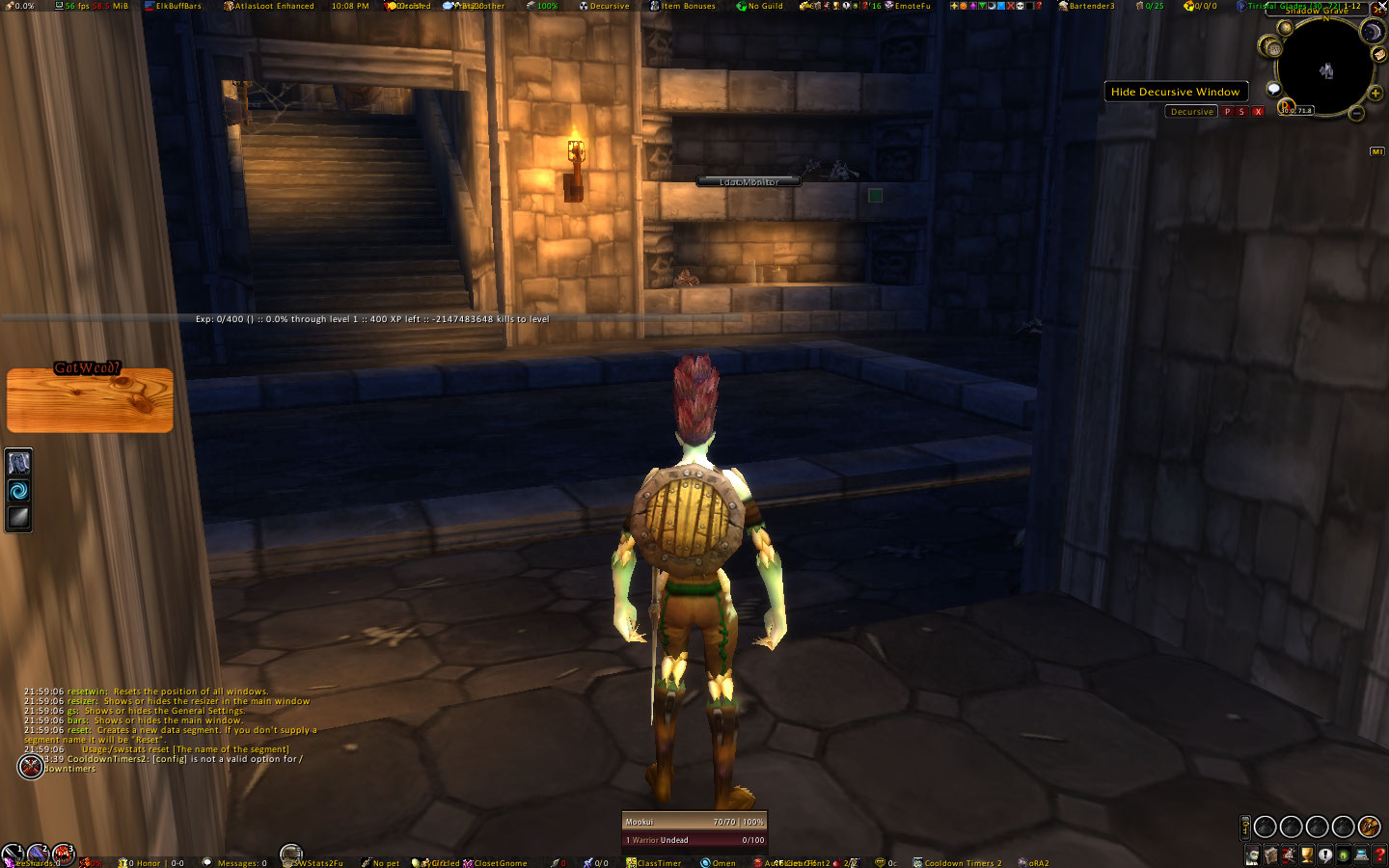
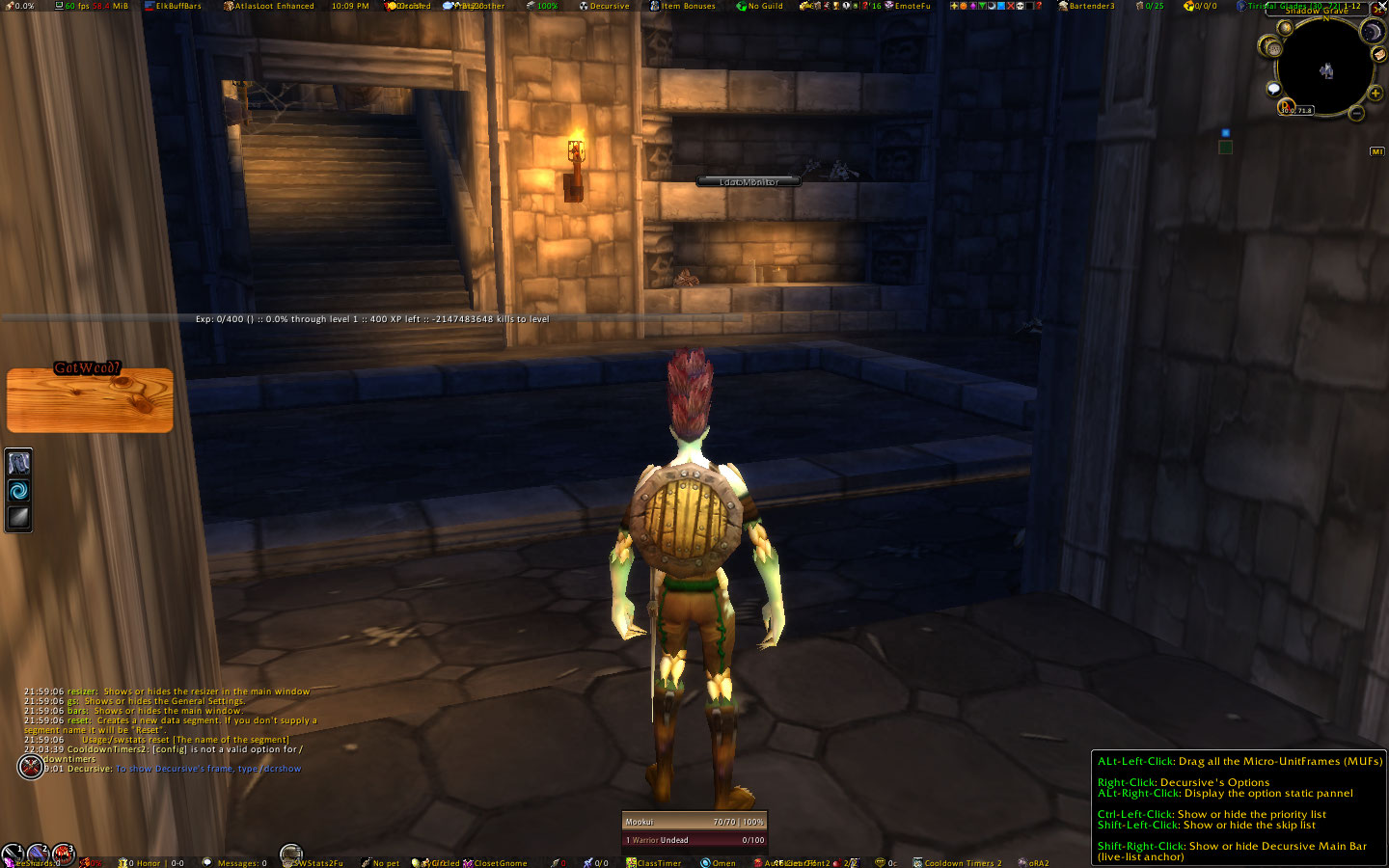
Drag the Loot Monitor and Loot Rolls anchors where you want them, then Right-click and uncheck 'Show Anchor' to hide:
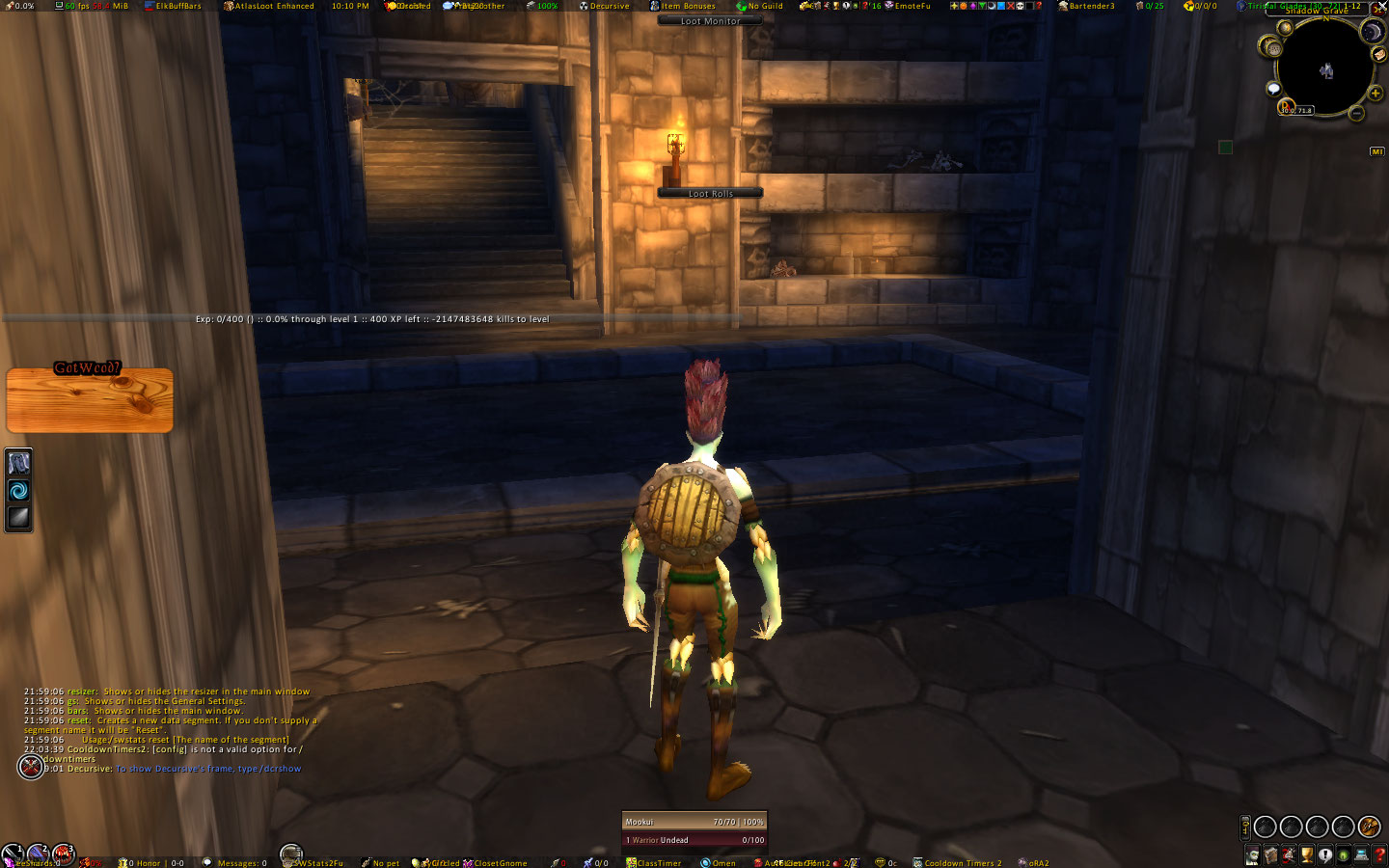
To clear away some of the Minimap icons: type "/wim" and uncheck 'Show Minimap icon' to remove WIM; type "/mi2", on the General tab uncheck 'Show Minimap Button', check 'Instead of MobInfo-Tooltip use the Game-Tooltip', and on the Tooltip tab check 'Press ALT Key for Mob info'; type "/rock" and choose 'AddOn Preferences' from the dropdown menu, then uncheck 'Show Minimap Icon'; finally, drag the DAGAssist icon wherever you want:
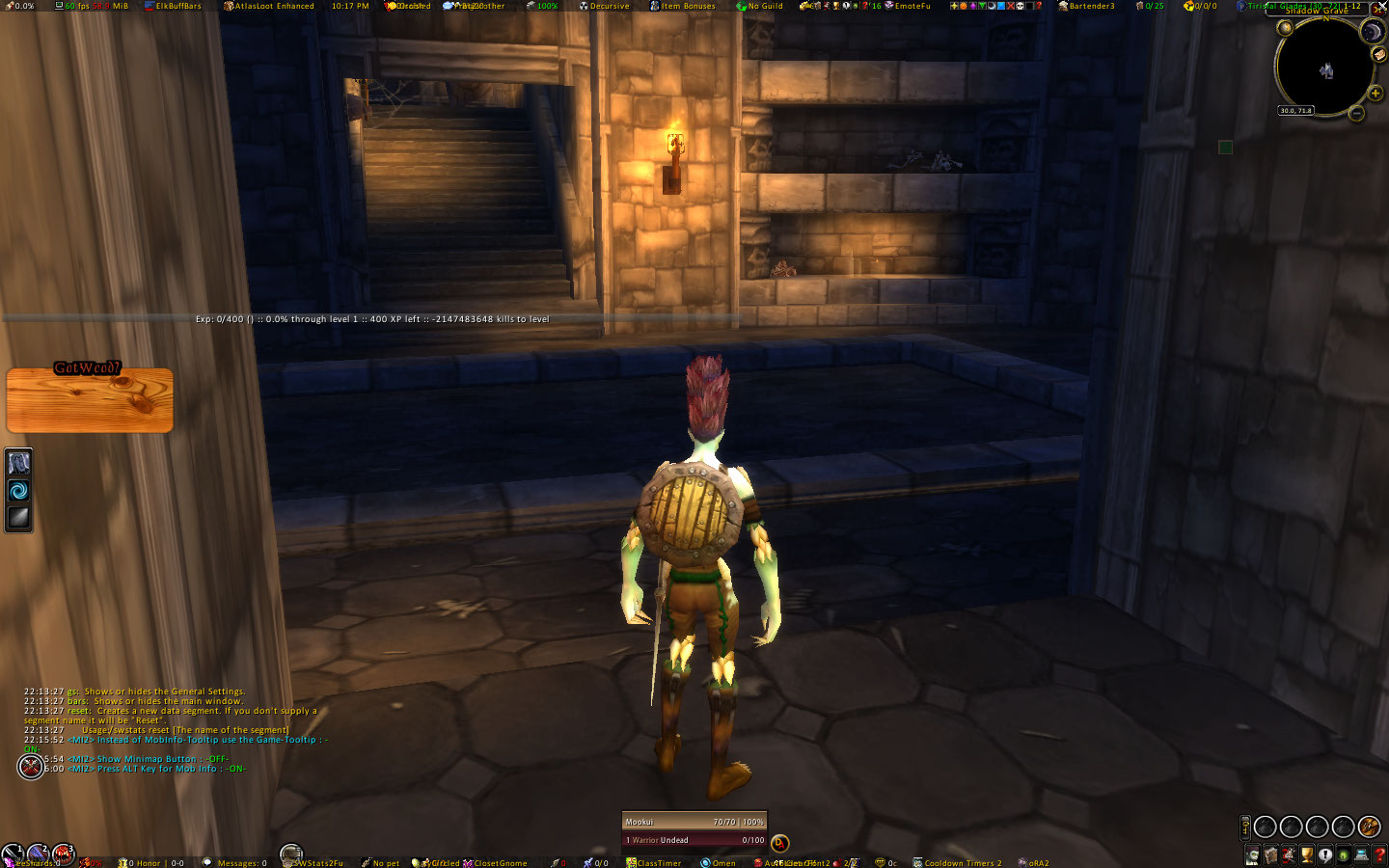
Move the minimap down so it isn't overlapping with the top FuBar; to configure further, type "/rock" and choose SimpleMinimap from the dropdown menu:
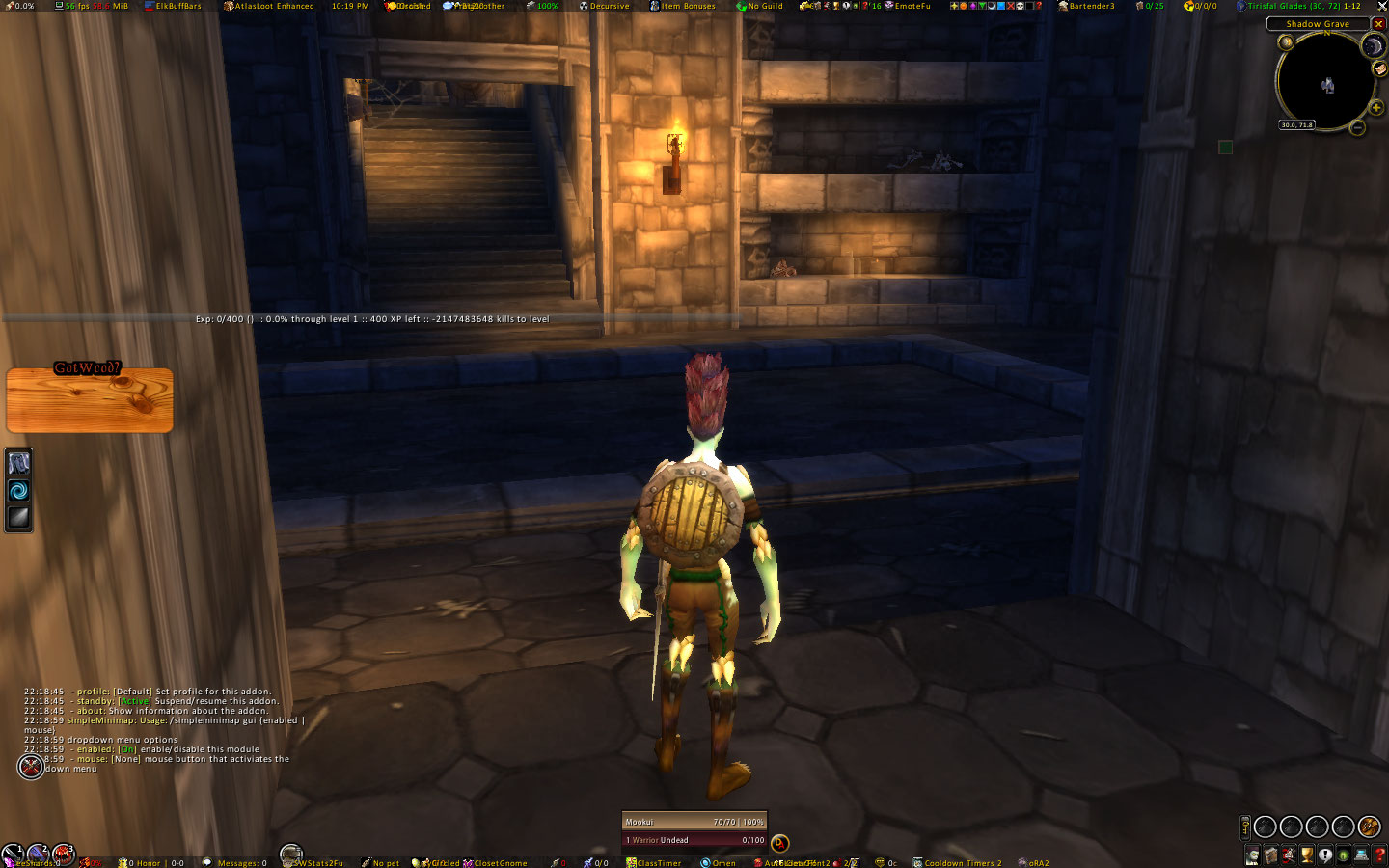
There are quite a lot of FuBar plugins that don't need to be shown on the FuBar in order to function, and can be configured through "/rock" instead ... I usually choose 'Hide Plugin' for all the following: AuldLangSyne, Bartender3, Bayi's Extended Quest Log, BigBrother, ClassTimer, ClearFont2, CooldownTimers2, CyCircled, Decursive, DrDamage, ElkBuffBars, and oRA2. Then, type "/rock", choose FuBar from the dropdown menu, and check 'Auto-hide bottom panels' and 'Auto-hide top panels':
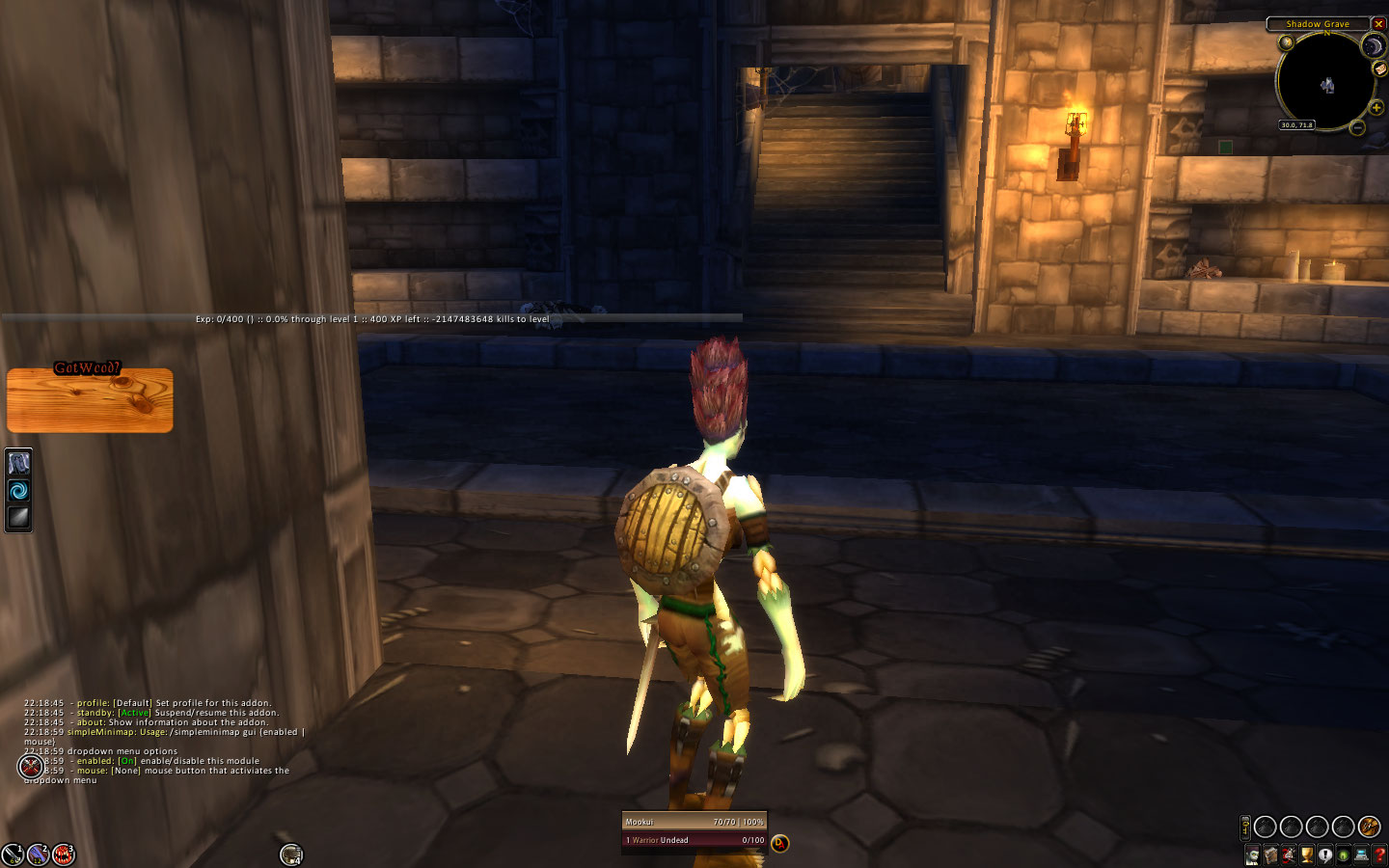
To change the action buttons skin, type "/rock", choose CyCircled from the dropdown menu, and change the Skin setting to 'LiteStep: XLT'. Type "/bt3 lock" to show all the Bartender3 bars, right-click on any bar to get its individual options, move bars where you want them, then type "/bt3 lock" again to relock:
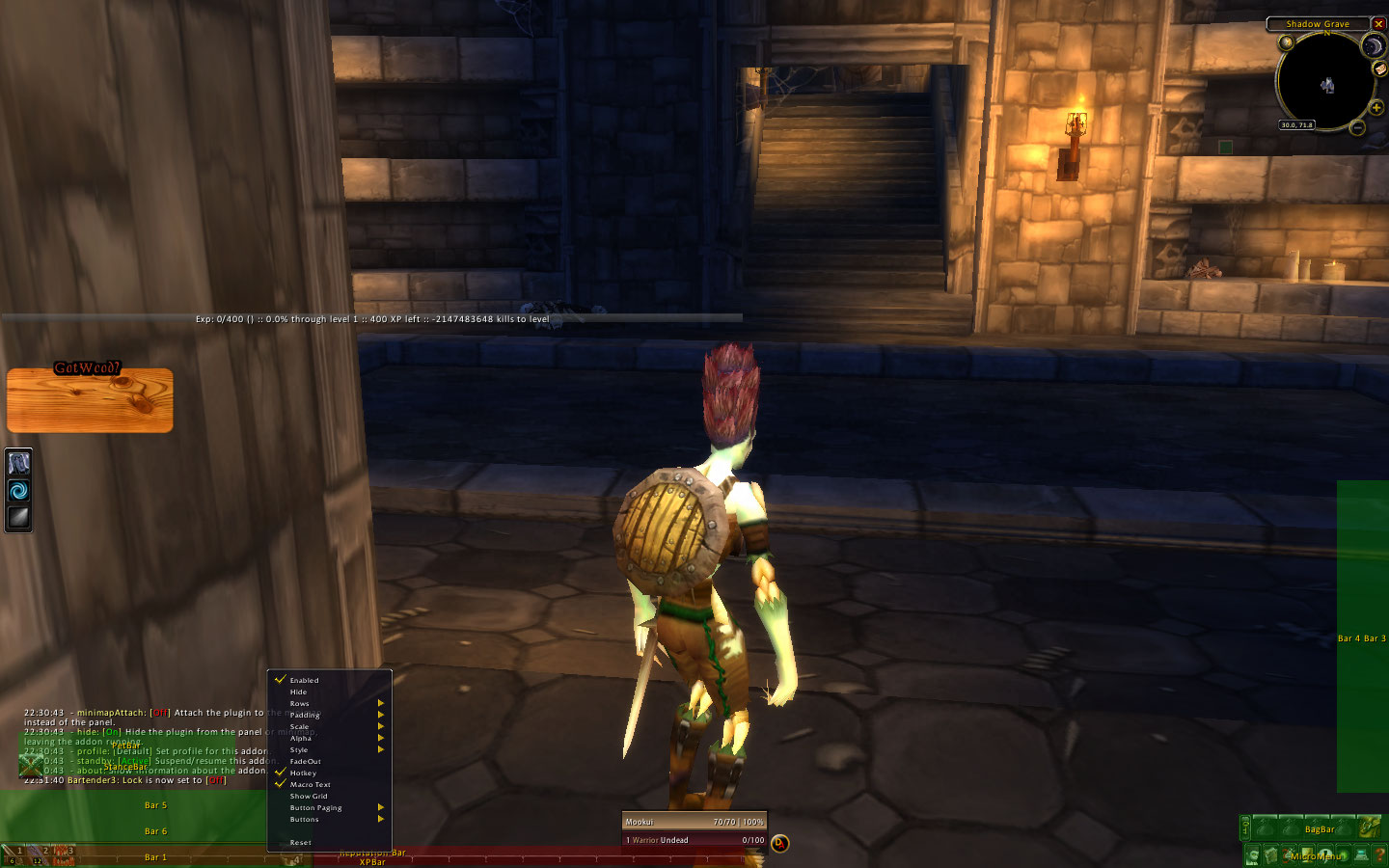
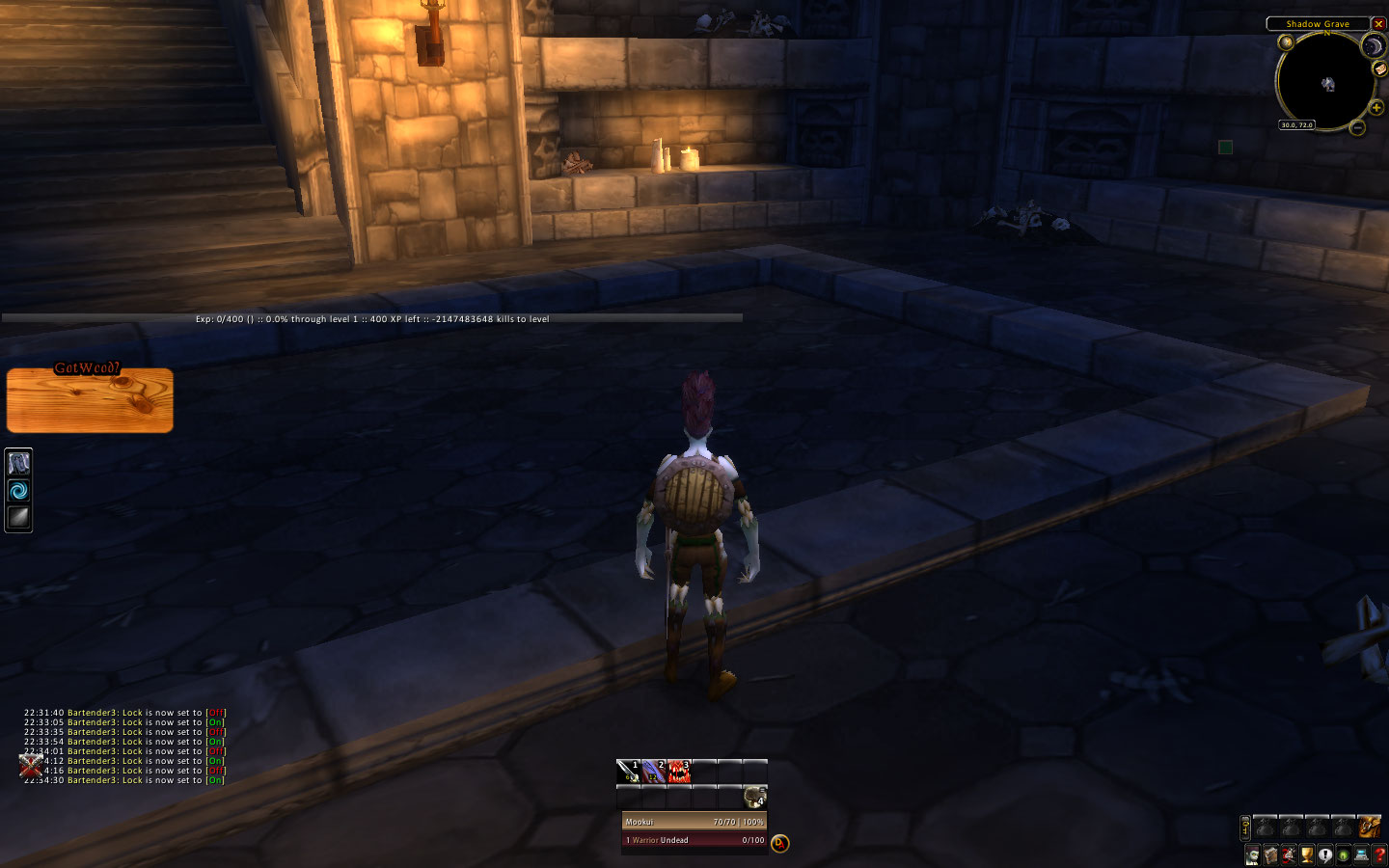
Finally, configure the XPBarNone to your liking (type "/rock, choose XPBarNone from the dropdown menu) and move it where you want, then right-click on the GotWood frame to lock it:
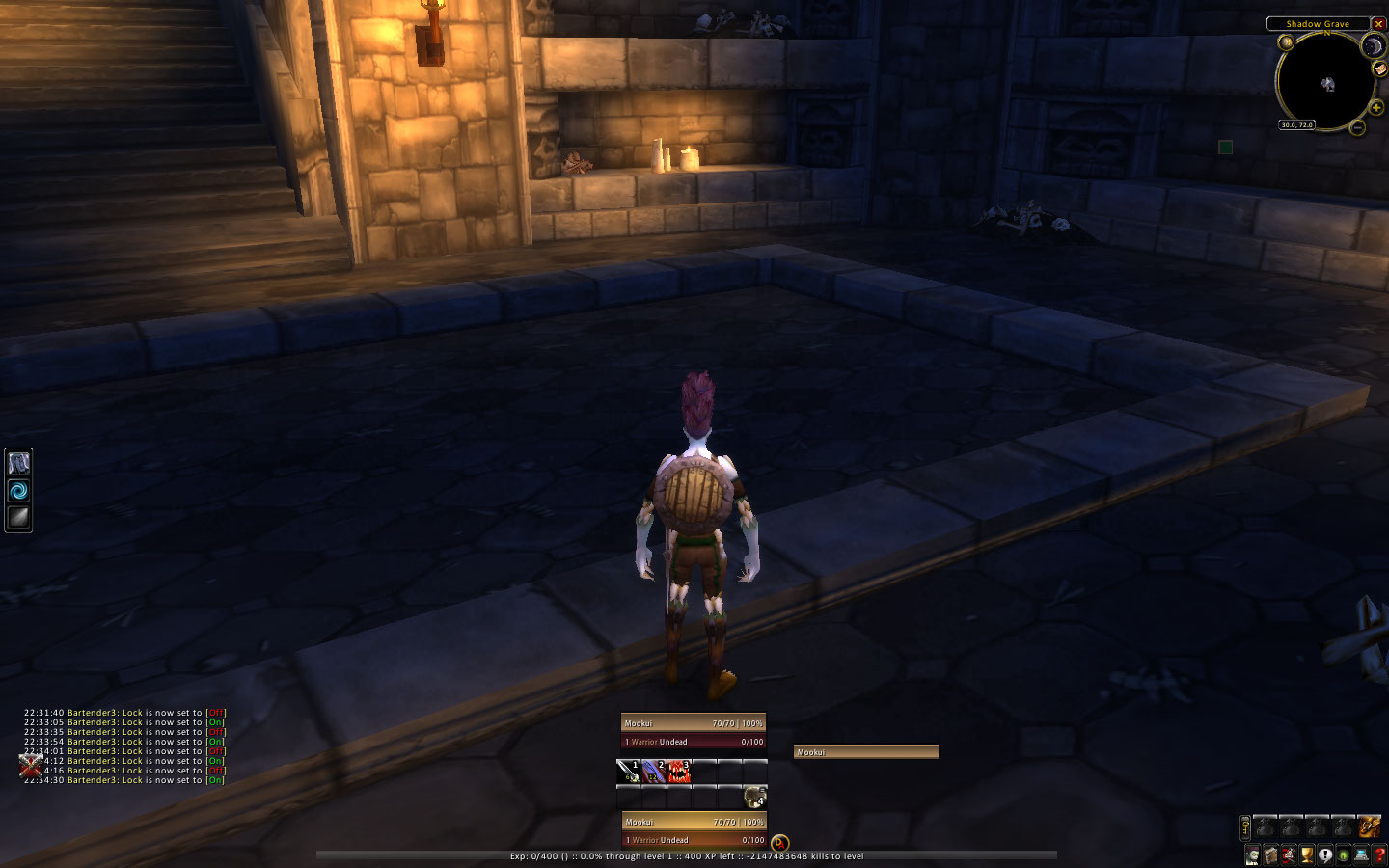
That's it, you're done! It's a little rough around the edges and will need a bit more individual polish, but it should be good enough as a starting base.
If you do have any problems, be sure to check the Frequently Asked Questions (F.A.Q.) and Known Issues. You can also post to the MookUI Support Forum if your question isn't covered in the ReadMe.
Q. What is that squeaky voice saying 'fatality' sometimes?
A. This is the notification sound from the BugSack AddOn, telling you that an error message was intercepted and sent to the BugSack. To disable the sound, type "/bs mute" in the chatbox. You can also use your own .WAV sound file by renaming it 'error.wav' and overwriting the one found in the BugSack folder.
Q. How can I move/change the action bars?
A. Type "/bt3 lock" in the chatbox to show all Bartender3 bars - you can right-click on individual bars to access more options.
Q. How do I disable the extra confirmation when trying to spend more than 1 gold at the Auction House?
A. This is from the Fence AddOn - to disable the confirmation check, type "/fence bw toggle" in the chatbox.
Q. How can I see what I have in my bank without being at the bank?
A. The addon ArkInventory takes care of this - on the normal Keybindings menu set a key for "Toggle Bank".
Q. Where can I download the most current copy of the MookUI compilation?
A. The most current information about the MookUI can always be found at: http://www.themook.net/mookui
It is also maintained at the following mirrors:
tabCurse-Gaming: http://www.curse.com/downloads/details/5272/
tabWowInterface.com: http://www.wowinterface.com/downloads/info6601-MookUI.html
tabIncGamers.com: http://wowui.incgamers.com/?p=mod&m=3724
Q. Where do I find other AddOns that aren't in the MookUI compilation (or updates for AddOns that are)?
A. Here are the main websites that I watch for new and updated AddOns:
tabWoW Ace Wiki: http://www.wowace.com
tabCurse Gaming: http://wow.curse-gaming.com
tabIncGamers.com: http://wowui.incgamers.com/
tabWoW Interface: http://www.wowinterface.com
tabCT Mod: http://www.ctmod.net/
Another excellent resource for AddOns discussion and support is the official World of Warcraft "UI & Macros" forum:
http://forums.worldofwarcraft.com/board.html?forumId=11114&sid=1
Sometimes with so many AddOns, it can be difficult to tell which one is controlling which part of the interface. Below I've tried to list the most common UI elements and which AddOn affects them.
Bags and Bank: ArkInventory
Bars at Top and Bottom: FuBar
Casting Bars: Quartz
Character Effects (appear only when Stunned, Silenced, etc.): PowerAuras
Chat: Prat
Combo Points: NComboBar
Inspect Characters: Examiner
Loot Frame and Tracking: XLoot
Minimap: simpleMinimap
Notepad: TinyPad
Quest Log: Beyi's Extended Quest Log
Quest Info: Lightheaded
Small Squares (micro unit frames that turn red when a party member is debuffed): Decursive
Stats Tracker (combat and healing): Recount
Target Portrait (over minimap): ZMobDB Advanced4
Talent Window: Talented
Threat Meter: Omen
Timer Bars (above Focus and Target of Target): ClassTimer
Timer Bars (cooldowns): Cooldown Timers 2
Timer Bars (Player Buffs): ElkBuffBars
Tooltips: CowTip
Totem Bar: Numen
Totem Timers: GotWood
Tradeskills: Skillet
Trinkets: TrinketMenu
Unit Frames (including Player, Target, ToT, Focus, Party, Raid): PitBull
Whispers: WIM
World Map: Cartographer
XP Bar: XPBarNone
Auto-sell Grey Items: AutoprofitX
Crowd Control Warning: Sheppard
!BugGrabber (table) (top) (curse)
Redirects WoW error messages to the 'BugSack' addon
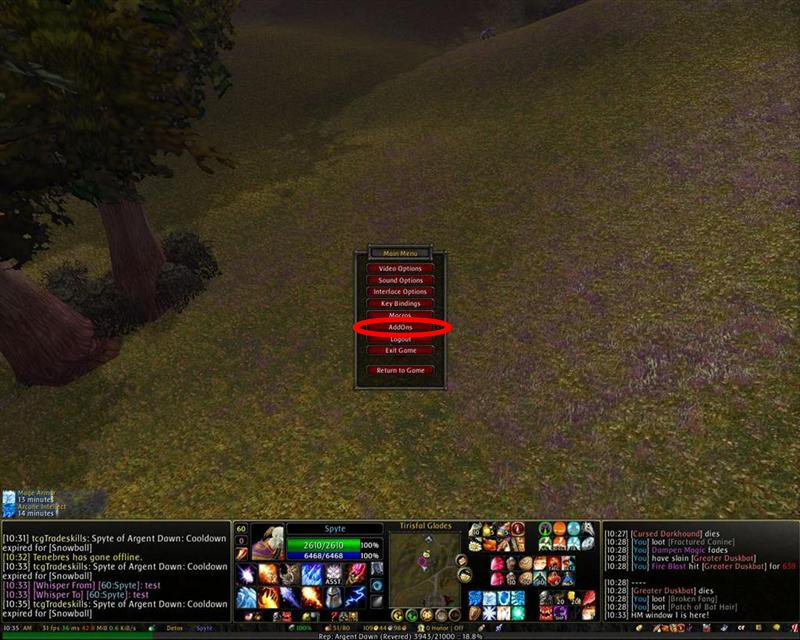
AddOn Control Panel (ACP) (table) (top) (wowace)
Adds an 'AddOns' button to the default Blizzard options menu, through which Load-on-Demand AddOns can be enabled/disabled
Align (table) (top) (wowinterface)
Toggles a grid over your UI, so you can more closely match the position of moveable elements
• /align
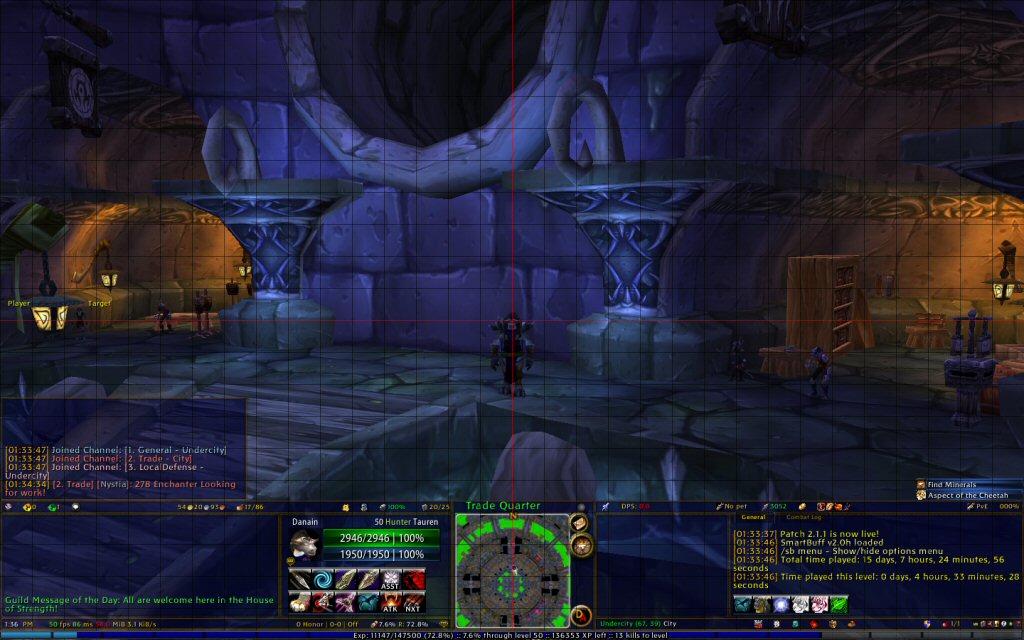
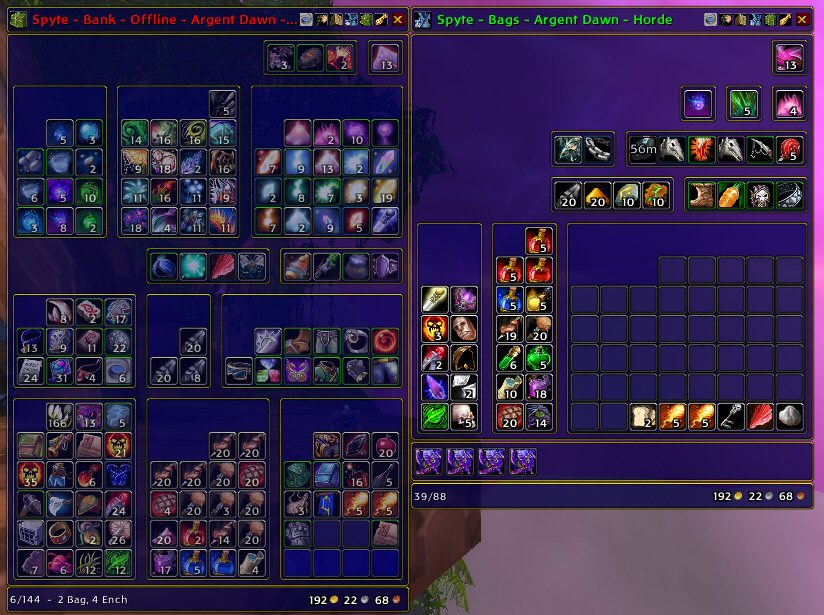
ArkInventory (table) (top) (wowinterface)
Customizable one-bag that autosorts
• /arkinv
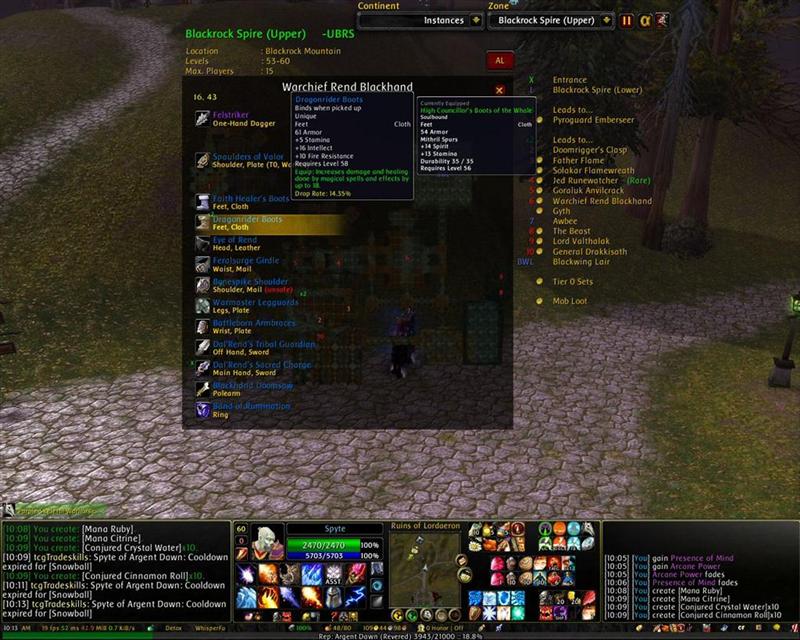
AtlasLoot (table) (top) (wowinterface)
Searchable loot tables/database
• /atlasloot
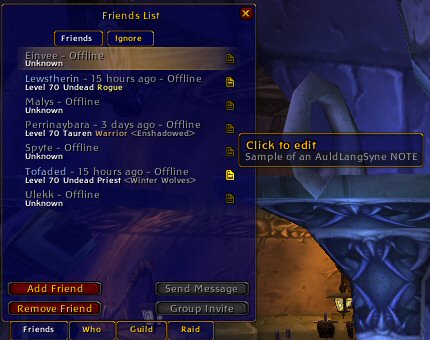
AuldLangSyne (table) (top) (wowace)
Maintains a list of player notes in the Friends/Guild list
• /auldlangsyne
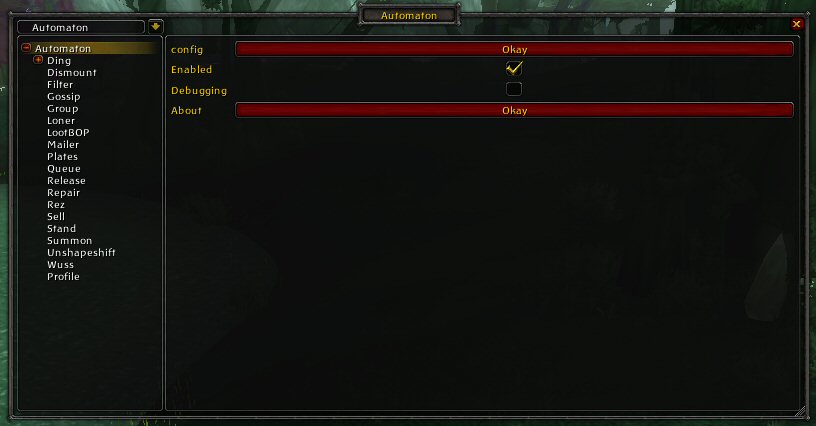
Automaton (table) (top) (wowace)
Automates a variety of mundane game tasks (auto-accepts group invites from players in your Guild or on your Friends list, skips superfluous NPC gossip text, etc.)
• /automaton
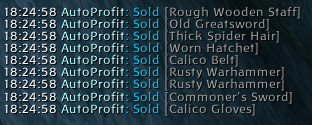
AutoprofitX (table) (top) (wowace)
Automatically sells grey or user-specified items at vendors
• /autoprofitx
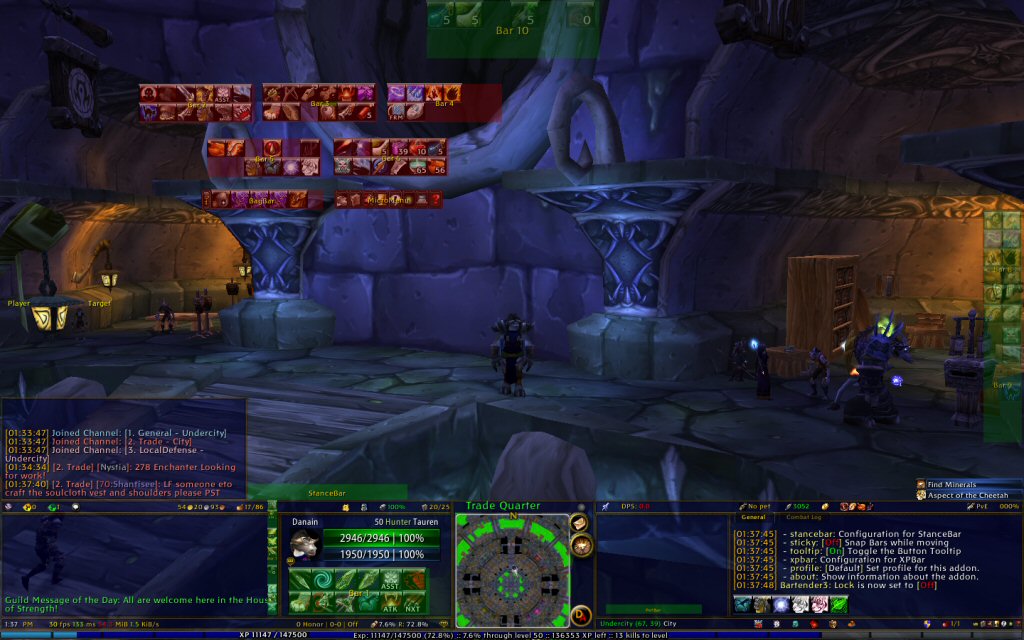
Bartender3 (table) (top) (wowace)
Customizable action bar replacement
• /bt3 lock
(this screenshot shows all bars, even those normally hidden, after using the above "/bt3 lock" command)
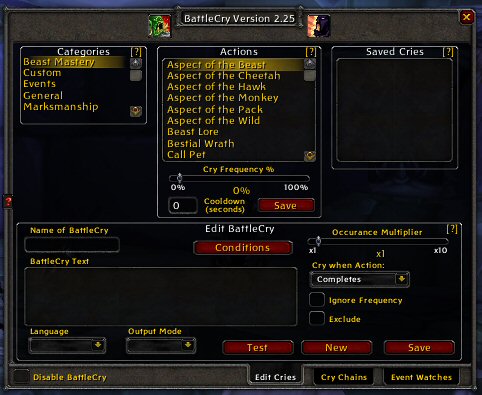
BattleCry (table) (top) (curse)
Customizable emotes/tells on game events
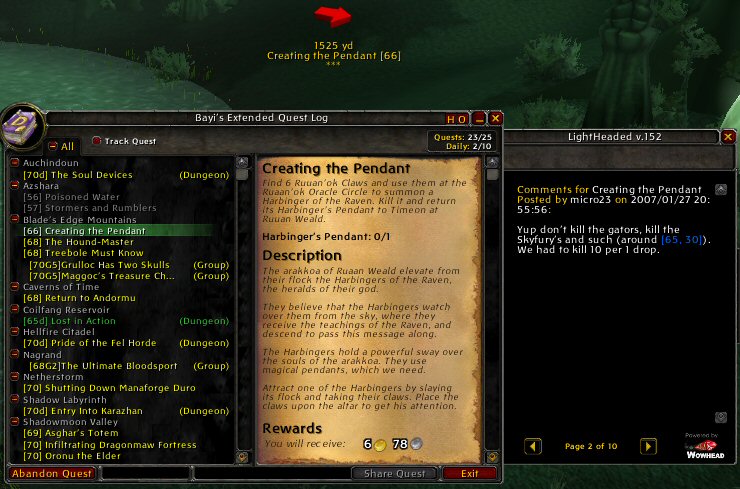
BeyiExtendedQuestLog (table) (top) (wowace)
Quest log replacement, with more room and some enhanced functionality (shown here with Lightheaded)
• /beql
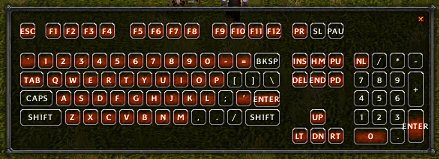
BindingsReminder (table) (top) (wowinterface)
Graphic display of key bindings
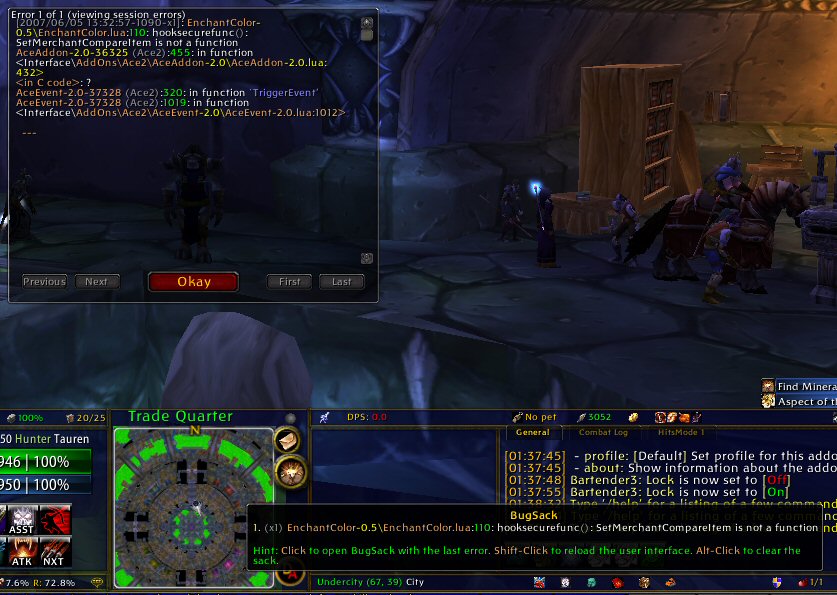
BugSack (table) (top) (curse)
Intercepts error messages for later review
• /bugsack, /bs
• /bs show all - show all error messages
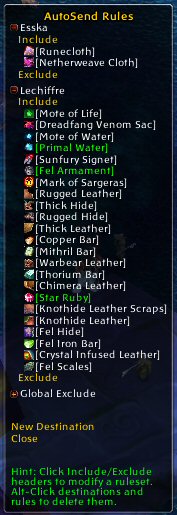
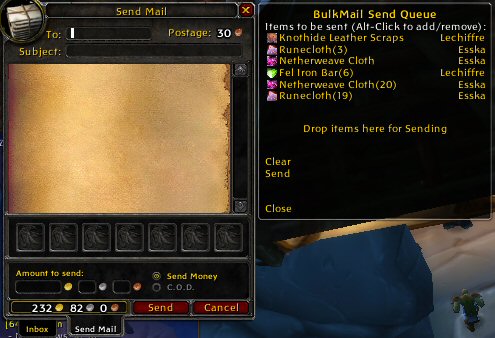
BulkMail2/BulkMailInbox2 (table) (top) (wowace)
Improved mailbox functions, including autosending of user-specified items
• /bm
 |
| 
BuyEmAll (table) (top) (wowinterface)
Additional functionality for purchasing multiple stacks of an item at once
(no screenshot)
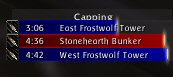
Capping (table) (top) (wowace)
Timer bars for Battlegrounds objectives
• /capping
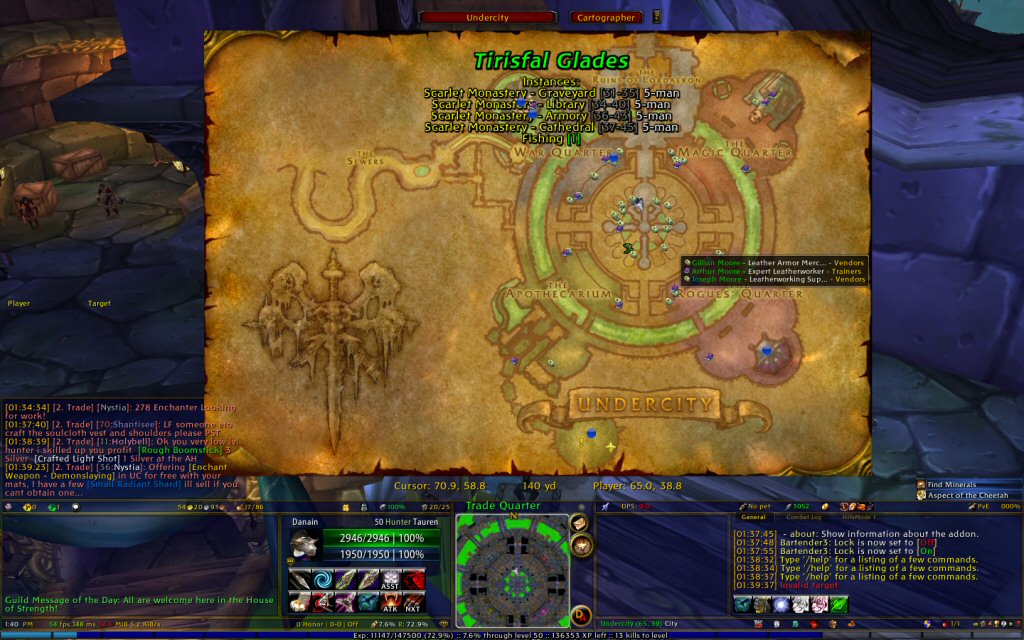
Cartographer (table) (top) (wowinterface)
Map replacement allowing for user-created mapnotes and tracking of resources (herbs, ore), questgivers, trainers, and vendors
CCBreaker (table) (top) (wowace)
Displays who broke crowd-control, and with what ability
no screenshot
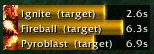
ClassTimer (table) (top) (wowace)
Displays bar timers for a variety of class-specific abilities (Polymorph, Sap, Shackle Undead, etc.)
ClearFont2 (table) (top) (home)
Alters the interface fonts (all other screenshots show the changed fonts)
• /clearfont
ClosetGnome (table) (top) (wowace)
Allows for easy switching and storing of gear/equipment
• /closetgnome, /cg
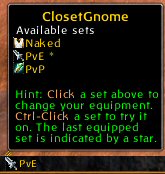
CooldownTimers2 (table) (top) (wowace)
Draggable, customizable windows displaying ability and item cooldowns
• /cooldowntimers, /cdt

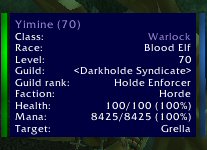
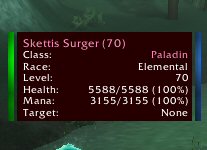
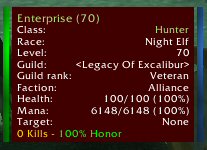
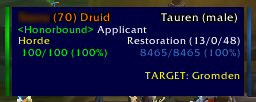
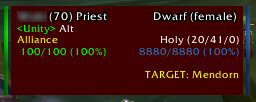
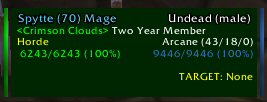
CowTip (table) (top) (wowace)
Tooltip replacement - very customizable
• /cowtip
Default - hovering over a Friendly target, a mob, and a Hostile target
 |
|  |
| 
Custom - hovering over a Friendly target, a Hostile target, and a Guildmate (myself)
 |
|  |
| 
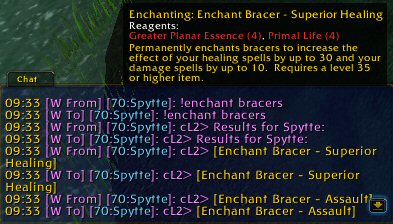
CraftList2 (table) (top) (wowace)
Allows players to whisper you to find out what items/enchants you can offer (note: in this screenshot I'm whispering myself; normally the lines would not be doubled like that)
• /cl2
CritAlert (table) (top) (wowui)
Plays custom sound file on critical hits
(no screenshot)
Crowbar (table) (top) (wowace)
One-click opening of all containers in inventory (shown here to the left of the XLoot loot list)
CyCircled (table) (top) (wowace)
Custom skins and effects for action bars (in this screenshot, the buttons are set to 'glossy')
• /cycircled
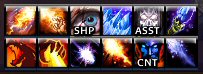
DeadlyBossMods (table) (top) (home)
Assistance for dungeon/boss fights
(no screenshot)
Decursive 2.0 (table) (top) (curse)
Provides customizable 'mini unit frames', to assist with curing and cleansing of party and raid members
• /decursive, /dcr
(no screenshot)
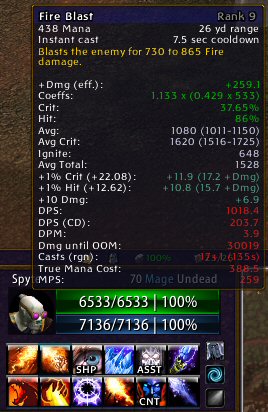
DrDamage (table) (top) (wowace)
Displays lots of extra information about spells in their tooltip
• /drdamage, /drdmg
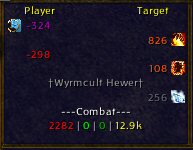
Eavesdrop (table) (top) (wowace)
Graphical combat log
eePanels2 (table) (top) (wowace)
Creates movable, customizable background panels
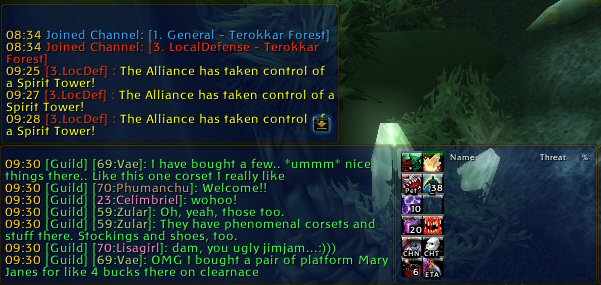
eeShards (table) (top) (wowace)
Soulshard counter/display (Warlock only)
• /eeshards
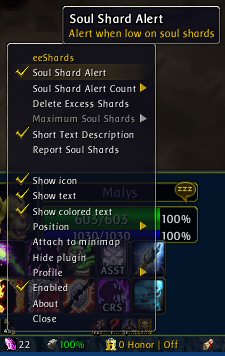
ElkBuffBars (table) (top) (wowace)
Replacement player buff/debuff frames
• /ebb config
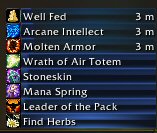
EnhancedColourPicker (table) (top) (wowace)
Adds "Copy and Paste" functionality to the default color picker window
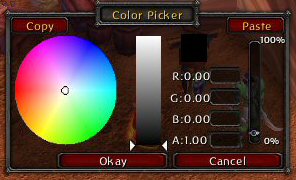
EnhancedFlightMap (table) (top) (curse)
Shows flight lines and times on the world map
• /efm
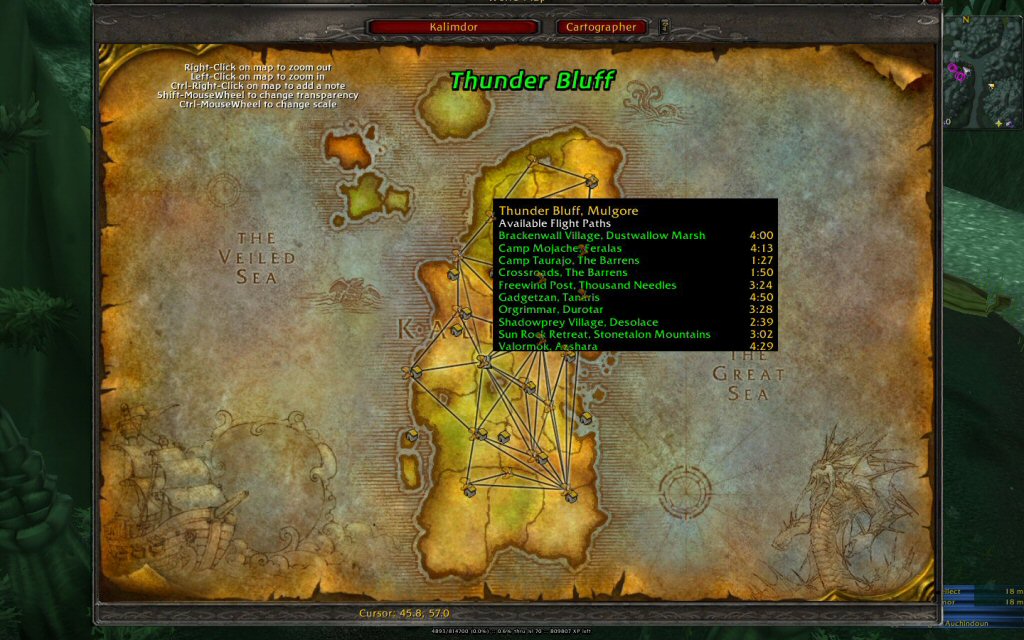
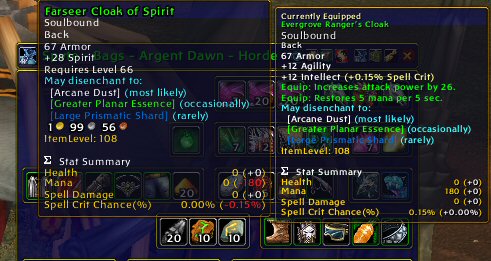
EqCompare (table) (top) (wowace)
Compares equipment you mouse over to equipment you are wearing
• /eqcompare
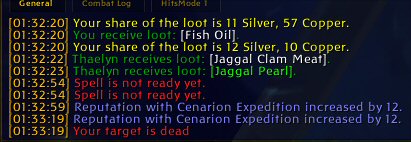
ErrorMonster (table) (top) (curse)
Moves (or hides) the red-colored error/system messages into the chat window(s)
• /errormonster
• /errormonster list - displays all current messages being moved/hidden
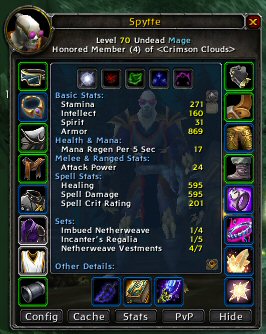
Examiner (table) (top) (wowinterface)
Enhanced character inspection
FishingAce (table) (top) (wowace)
Streamlines the fishing process
(no screenshot)
Fizzle (table) (top) (wowace)
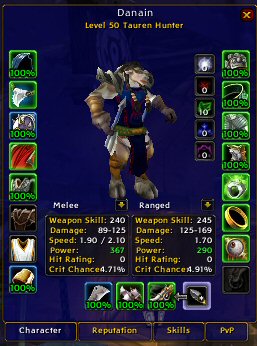
Adds durability percentages directly to the character pane equipment
• /fizzle
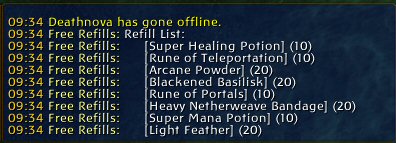
FreeRefills (table) (top) (wowace)
Autobuys items you specify from vendors that carry them
• /fr
• /fr list
FuBar (table) (top) (wowinterface)
Provides configurable infobars, populated with the modules listed below (shown here are my top and bottom FuBars)
• /fubar


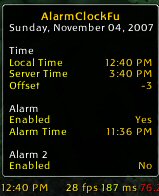
FuBar_AlarmClockFu (table) (top) (wowace)
Simple clock with two customizable alarm settings (note: this is a modified version)
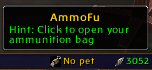
FuBar_AmmoFu (table) (top) (wowace)
Tracks and displays current ammunition
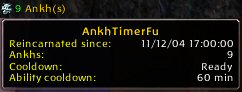
FuBar_AnkhTimerFu (table) (top) (wowace)
Tracks ankhs and Reincarnation timer for Shamans
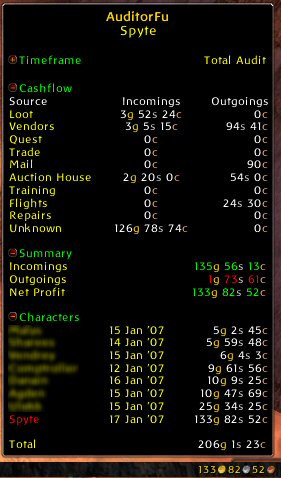
FuBar_AuditorFu (table) (top) (wowinterface)
Tracks and displays money information across characters
FuBar_AutoLootFu (table) (top) (wowinterface)
Provides an auto-loot toggle button
FuBar_BabelFu (table) (top) (wowace)
Toggle for language selection
FuBar_BagFu (table) (top) (wowinterface)
Displays bag slots
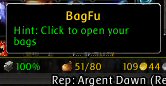
FuBar_CharmsFu (table) (top) (wowace)
Adds the Raid icons to the FuBar for ease-of-use

FuBar_DurabilityFu (table) (top) (wowinterface)
Displays the durability of equipped gear as a percentage
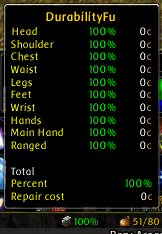
FuBar_EmoteFu (table) (top) (incgamers)
Provides quick menu access to all available emotes
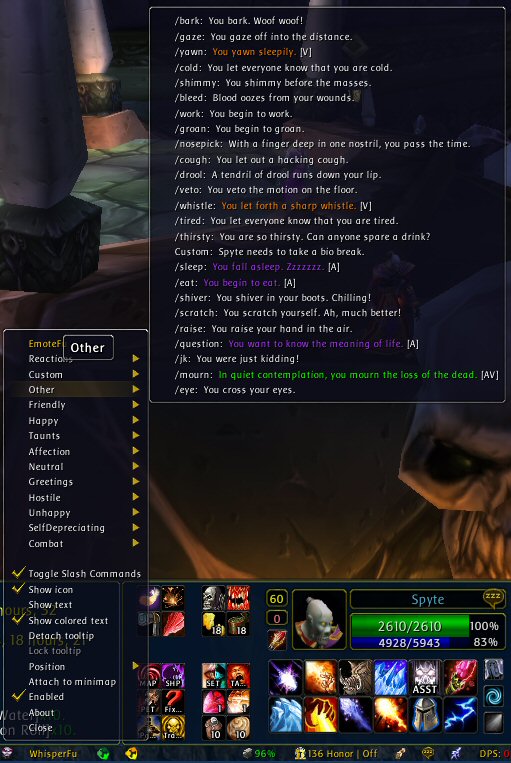
FuBar_ExperienceFu (table) (top) (wowinterface)
Displays info about XP
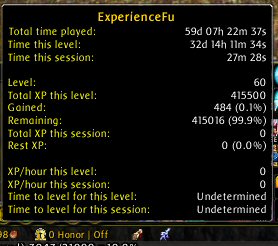
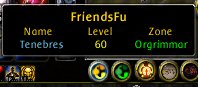
FuBar_FriendsFu (table) (top) (wowinterface)
Displays your Friends (name, level, location)
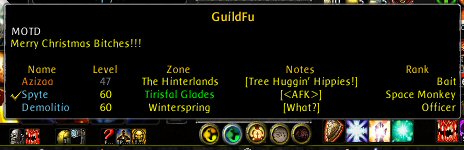
FuBar_GuildFu (table) (top) (wowinterface)
Displays your Guildmates (name, level, location, guild note, rank)
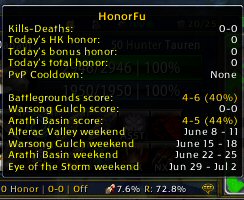
FuBar_HonorFu (table) (top) (wowinterface)
Displays info about Honor
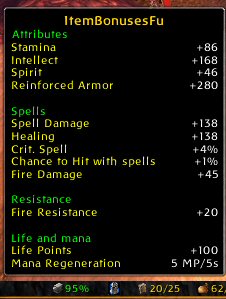
FuBar_ItemBonusesFu (table) (top) (wowace)
Displays sum totals of all item bonuses
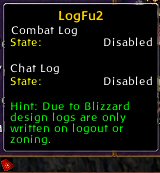
FuBar_LogFu2 (table) (top) (wowace)
Provides an easy toggle button for saving chat or combat log
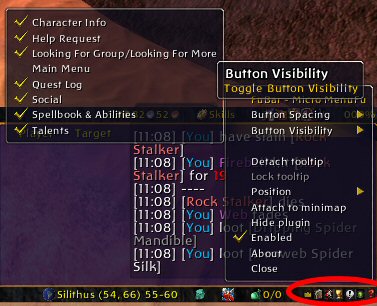
FuBar_MicroMenuFu (table) (top) (wowace)
Displays a small copy of the main menu bar on the FuBar
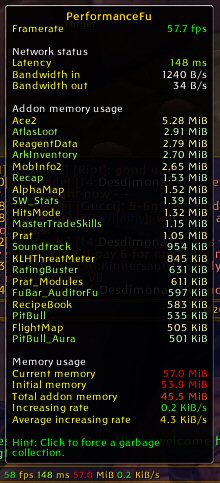
FuBar_PerformanceFu (table) (top) (wowinterface)
Displays info about your computer's performance (latency, fps, etc)
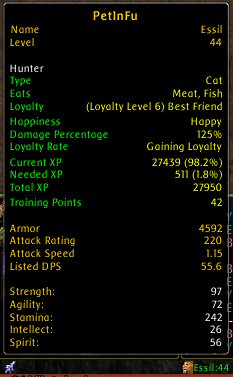
FuBar_PetInFu (table) (top) (wowinterface)
Displays info about your pet
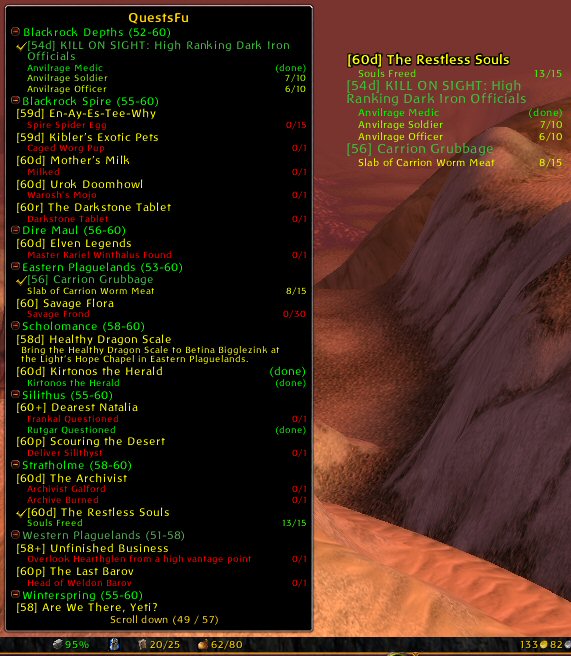
FuBar_QuestsFu (table) (top) (wowinterface)
Replacement quest log and quest tracker
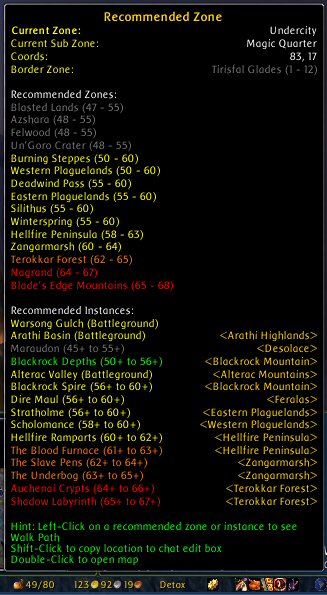
FuBar_RecZoneFu (table) (top) (wowinterface)
Displays information about current zone, and recommended zones for your level
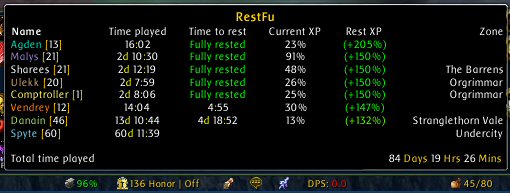
FuBar_RestFu (table) (top) (wowinterface)
Displays Rest XP info about all your characters in one place
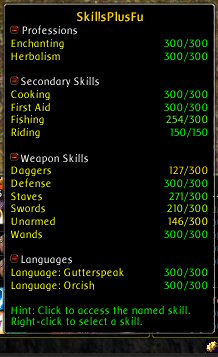
FuBar_SkillsPlusFu (table) (top) (wowinterface)
Displays all of your character's skill info
FuBar_SpeedFu (table) (top) (wowace)
Displays your current speed as a percentage (running = 100%)


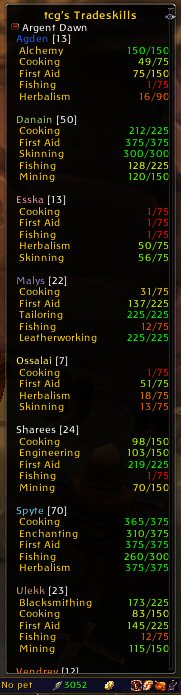
FuBar_tcgTradeskills (table) (top) (wowinterface)
Displays the known skills of all your characters
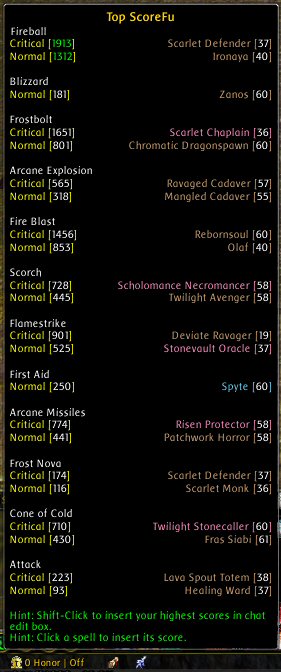
FuBar_TopScoreFu (table) (top) (wowinterface)
Keeps track of your highest individuals damage records
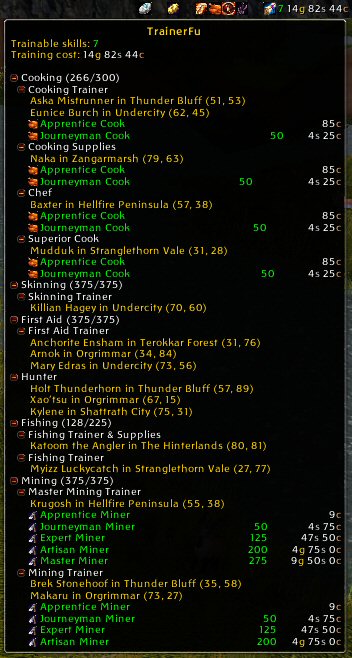
FuBar_TrainerFu (table) (top) (wowace)
Tracks trainable and upcoming abilities
FuBar_TransporterFu (table) (top) (wowace)
Drop down list of all available transportation
no screenshot
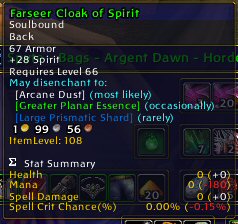
GFW_DisenchantPredictor (table) (top) (home)
Displays the components an item is likely to disenchant into in the tooltip
GFW_FeedOMatic (table) (top) (home)
Makes it even easier to feed your pet
• /feedomatic, /fom

GFW_Hunter's Helper (table) (top) (home)
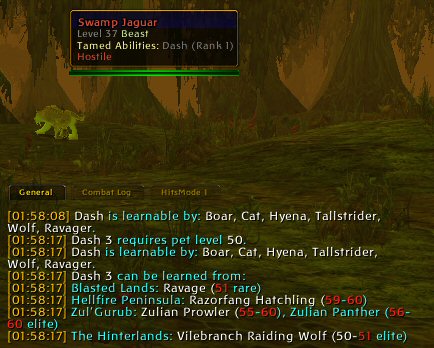
Displays tameable abilities in the tooltip, as well as allows for in-game searching of which beasts teach which skills (Hunter only)
• /huntershelper, /hh
GotWood (table) (top) (wowace)
Totem timer (Shaman only)

Grid (table) (top) (wowace)
Small but useful raid frames
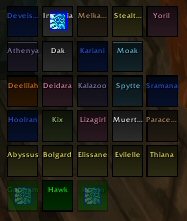
GrimoireKeeper (table) (top) (curse)
Known grimoires tracker for Warlocks (known grimoires are colored green)
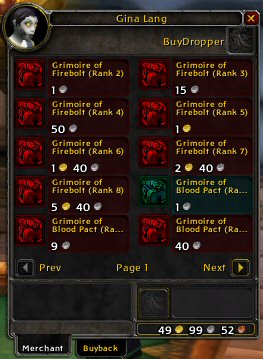
HitsMode (table) (top) (curse)
Replaces the default combat log
• /hitsmode
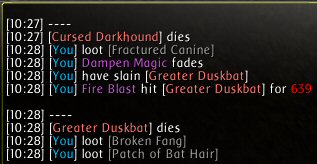
ICU (table) (top) (curse)
Announces your minimap tracking target (Hunters only)
• /icu options
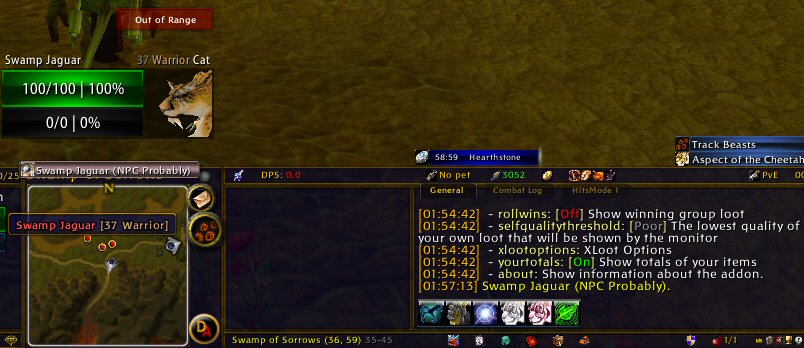
Identity (table) (top) (curse)
Adds alts and aliases to the chat channels
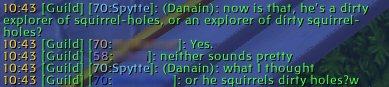
K Hunter Timers (table) (top) (curse)
Timer bars for Hunter traps/abilities
• /kht

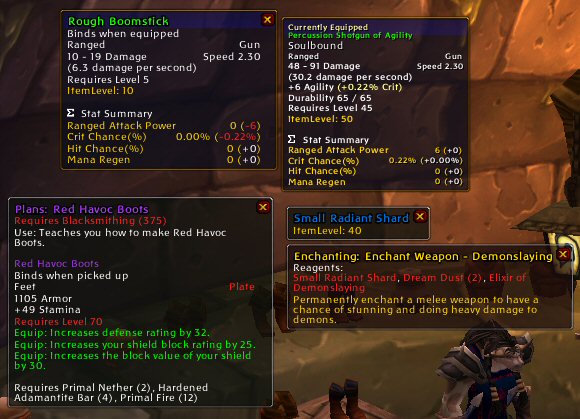
LightHeaded (table) (top) (wowinterface)
Displays the text of quest comments taken from the WoWHead website; extremely helpful when questing for xp (shown here attached to Beyi's Extended Quest Log)
Links (table) (top) (wowace)
Allows more than one linked item window to be open by Alt-clicking loot links
• /links
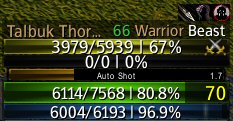
LittleTrouble (table) (top) (wowinterface)
Auto-shot timer for Hunters (shown here nestled between PitBull target and player unit frames)
LootHog (table) (top) (curse)
Tracks the results of party/raid 'rolls'
• /loothog, /lh
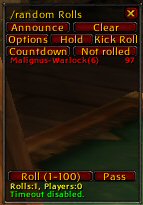
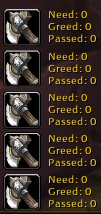
LootSpy (table) (top) (incgamers)
Displays loot when rolled for, including how many Need/Greed rolls there are (blank in this screenshot)
• /lootspy, /ls
• /ls locked - locks and unlocks the LootSpy window
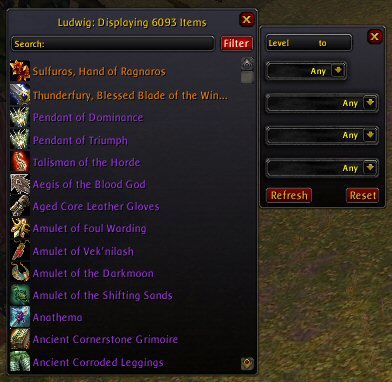
Ludwig (table) (top) (wowinterface)
Maintains an in-game database of all items you come in contact with
• /ludwig
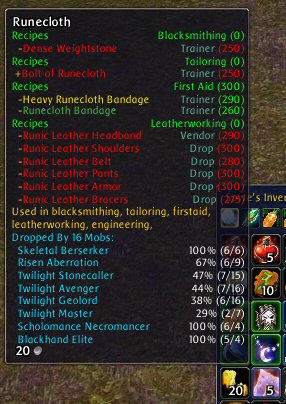
MasterTradeSkills (table) (top) (incgamers)
Adds recipe data to ingredient tooltips (note: this is the BETA version, which includes a custom ReagentData dependency)
• /mastertradeskills, /mts
• /mts options - options window
MobInfo2 (table) (top) (curse)
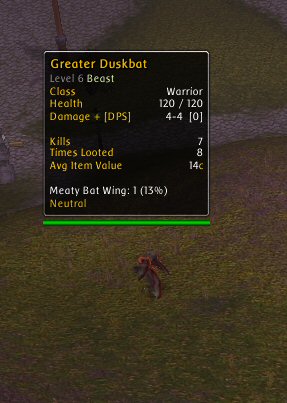
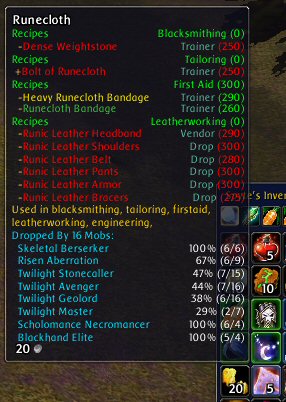
Adds additional info the mobs tooltip
• /mobinfo2, /mi2
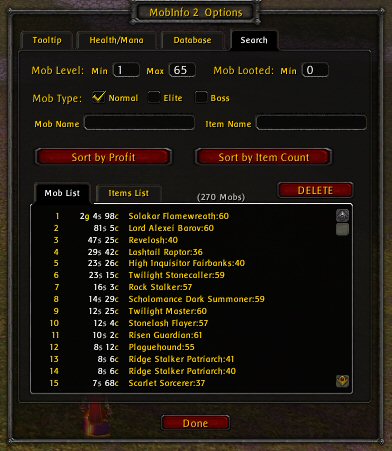
Tooltip options and Database search
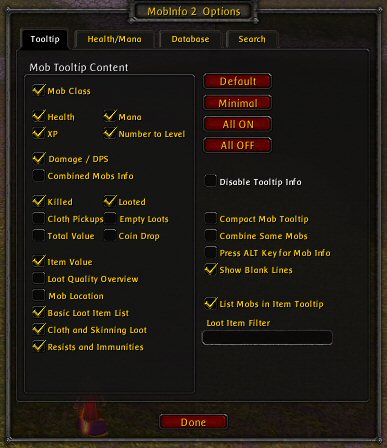 |
| 
Tooltip display over Mob and over loot item
 |
| 
Mobs2Level (table) (top) (curse)
Displays how many more mobs it will take to reach the next level

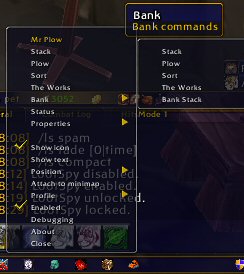
MrPlow (table) (top) (wowace)
Bag and inventory sorting (note: sorts the 'real' bags, as well as the ArkInventory 'virtual' bags)
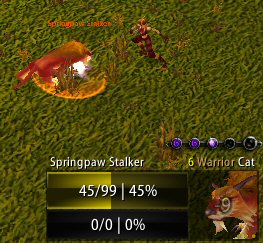
NugieComboBar (table) (top) (wowinterface)
Stand-alone replacement for the combo points frame (Rogues only)
• /nugiecombobar, /ncb
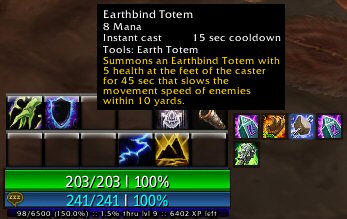
Numen (table) (top) (wowace)
Totem manager (Shaman only)
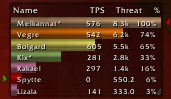
Omen (table) (top) (wowace)
Threat meter - compatible with KLH Threat Meter
OmniCC (table) (top) (curse)
Global cooldown timer (shows cooldowns in the 'Bartender3' bars)
• /omnicc
oRA2 (table) (top) (wowace)
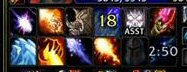
Raid assist AddOn, without frames
• /ora
(no screenshot)
oTweaks (table) (top) (none known - used to be home)
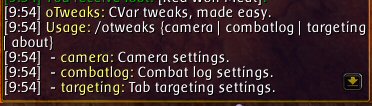
Allows easy changing of some camera/tab targeting/combat log range values
• /otweaks
Paparazzi (table) (top) (wowace)
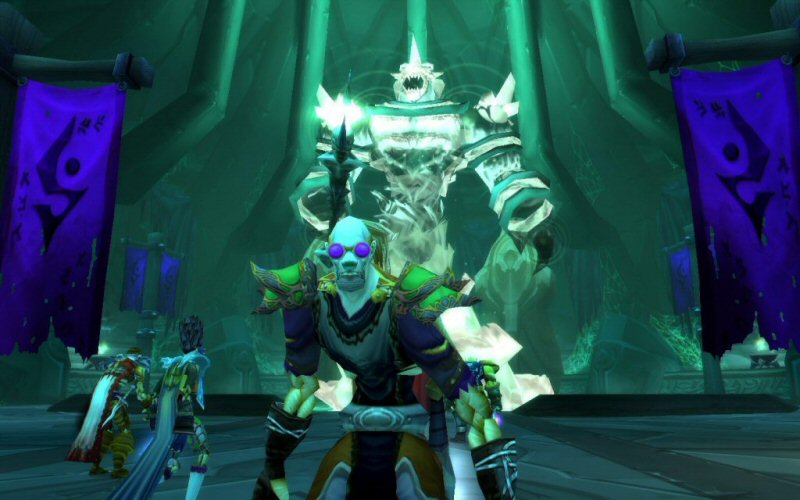
Allows the taking of screenshots which automatically remove the UI elements
• /paparazzi, /pap
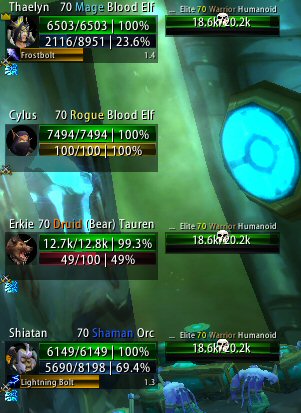
PitBull (table) (top) (wowace)
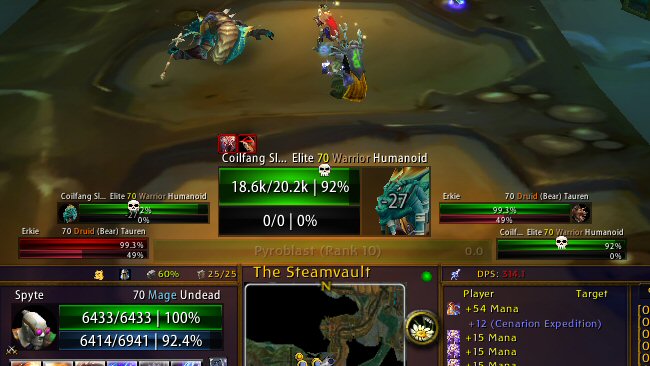
Replacement unit frames (player, target, focus target, party, raid, etc.)
• /pitbull, /pb
Target, Target's Target and Target of Target's Target (on the right), Focus Target and Target of Focus Target (on the left)
Party frames (and Party Targets)
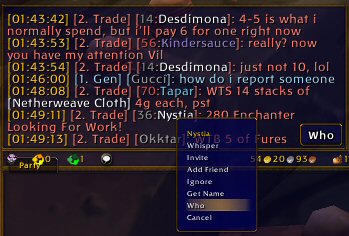
PlayerMenu (table) (top) (wowace)
Adds a "/who" option to the player right-click menu (and "/guild invite" and "/guild promote" if you have those powers)
• /playermenu, /pm
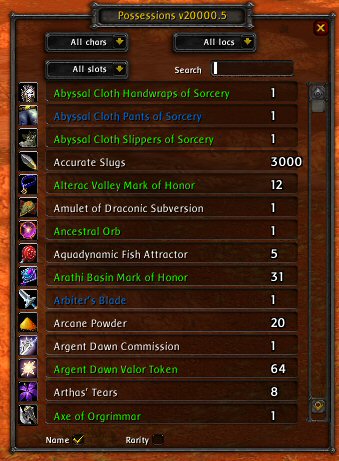
Possessions (table) (top) (curse)
Searchable database of all items on all alts
• /possessions, /poss
All items across all characters
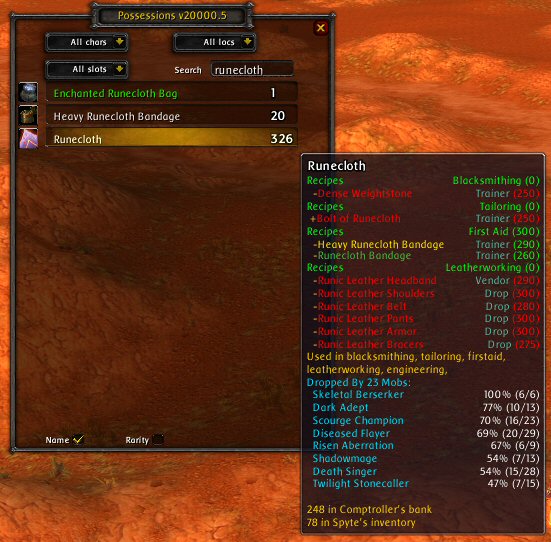
Searching for "runecloth"
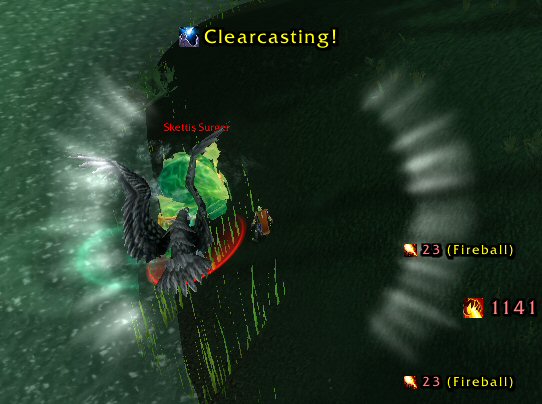
PowerAuras (table) (top) (curse)
Graphic notification of user-specified events (for example, a glowing ring when user has Clearcast, etc.)
• /powa
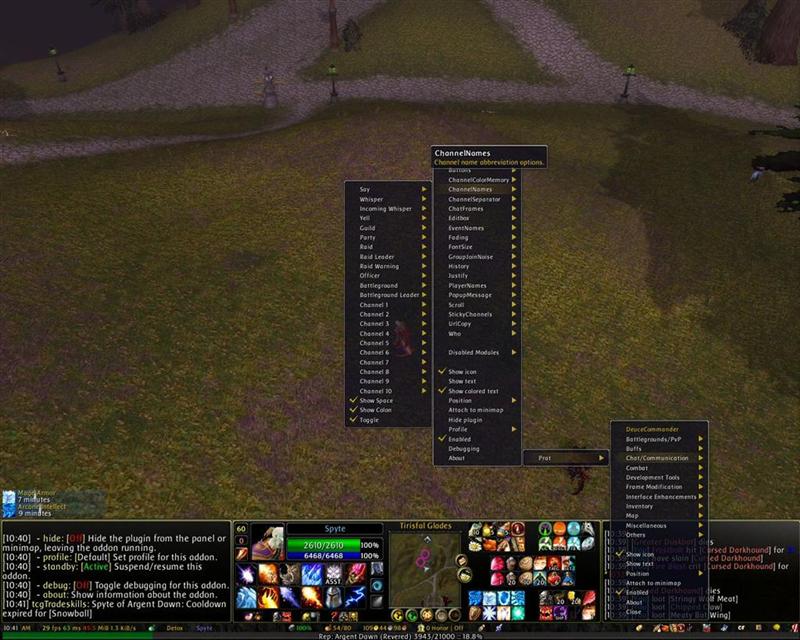
Prat (table) (top) (wowace)
Allows customization of the chat windows and how info is displayed
• /prat
• /prat waterfall - opens the main Prat configuration window
ProfessionsBook (table) (top) (wowace)
Tracks the tradeskills of all characters
• /pb show
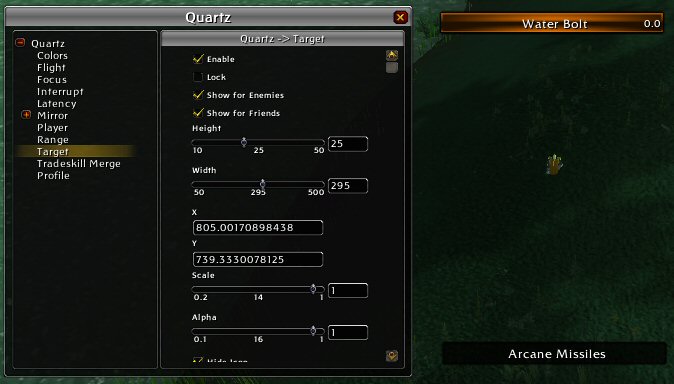
Quartz (table) (top) (wowace)
Replacement casting bars for Player, Target, Focus, etc - displays spell latency right inside the casting bar
• /quartz
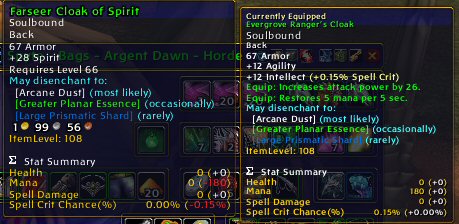
RatingBuster (table) (top) (curse)
Converts the new WoW ratings back to percentages, and shows a 'Rating Summary' in the tooltip
• /ratingbuster, /rb
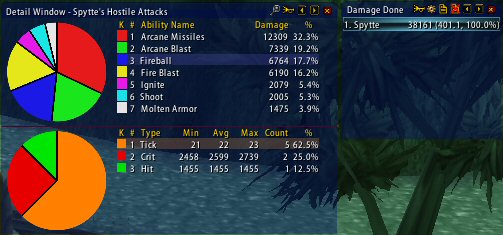
Recount (table) (top) (wowace)
Damage meter and stats
• /recount
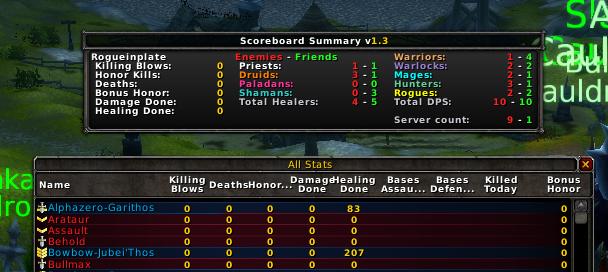
ScoreboardSummary (table) (top) (wowinterface)
Displays a summary of battlegrounds scores
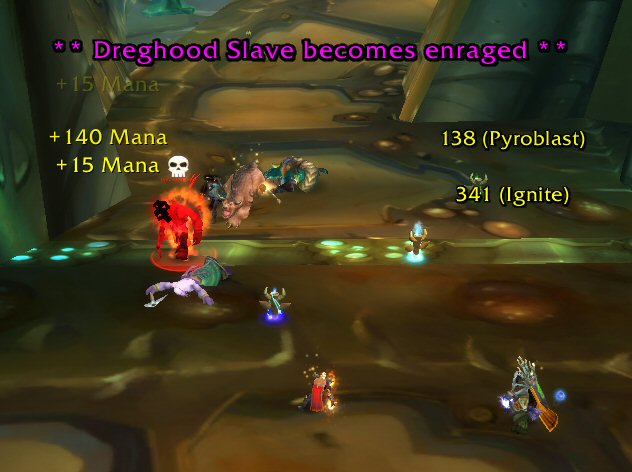
ScrollingCombatText (table) (top) (wowinterface)
Highly customizable scrolling combat text
• /sct menu
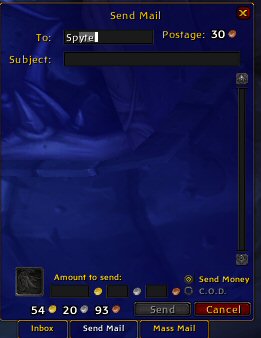
SendSelf (table) (top) (wowace)
Adds the names of your alts to the Mail 'auto-complete' list
• /sendself
SharedMedia (table) (top) (wowace)
Texture and media file library
no screenshot
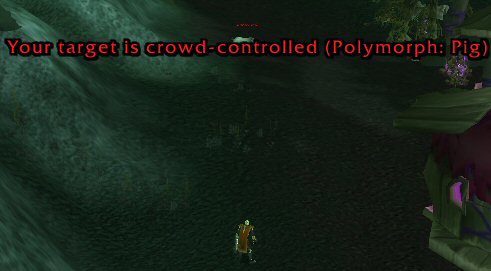
Sheppard (table) (top) (wowace)
Displays a warning if your target is currently being 'crowd controlled' (Polymorphed, Sapped, etc.)
• /sheppard, /shep
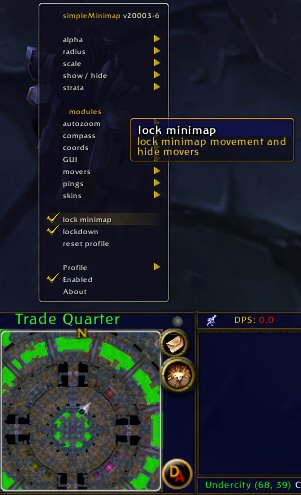
SimpleMinimap (table) (top) (wowace)
Minimap replacement (can be moved, resized, made transparent, etc.)
• /simpleminimap, /smm
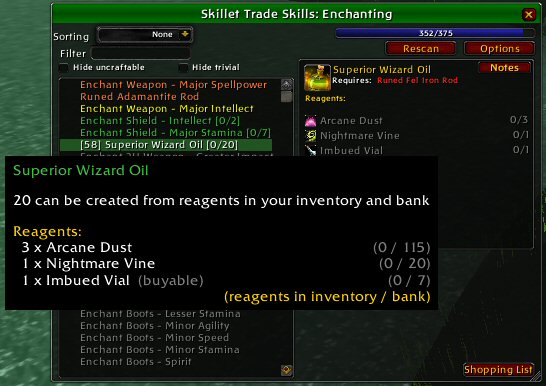
Skillet (table) (top) (wowace)
Tradeskill window replacement - allows for queuing of production items and a shopping list for needed reagents
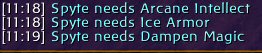
SmartBuff (table) (top) (curse)
Tracks buffs and notifies you when a buff expires
• /smartbuff, /sb
• /sb menu - opens the main SmartBuff configuration window
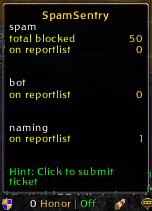
SpamSentry (table) (top) (wowace)
Blocks in-game spam messages
SpellAlertSCT (table) (top) (wowinterface)
Displays spell alerts when those around you cast a spell or use an ability
• /sasct
StopTheSpam (table) (top) (wowace)
Suppresses AddOn loading spam
no screenshot
Talented (table) (top) (wowace)
Talent calculator and templates
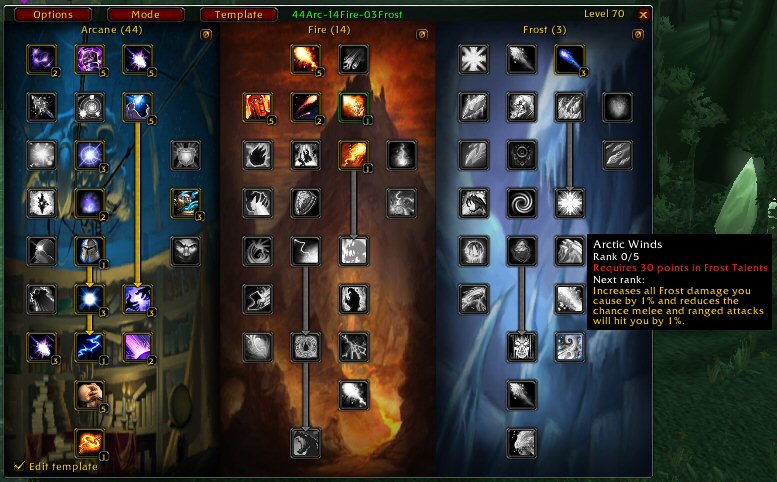
TalentReminder (table) (top) (curse)
Reminds you every 5 minutes if you have available talent points to spend
• /talentreminder

TinyPad (table) (top) (incgamers)
Simple in-game notepad
• /tinypad
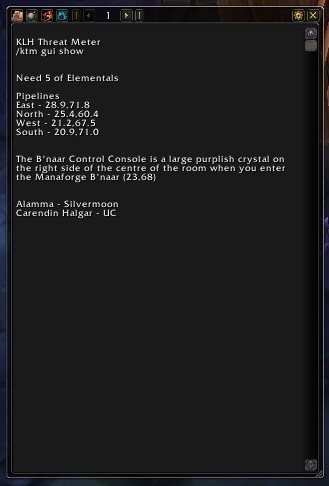
TradeJunkie (table) (top) (wowinterface)
Displays tradeskills you do not yet know
no screenshot
TrinketMenu (table) (top) (curse)
Monitors and swaps trinkets and their cooldowns
• /trinketmenu
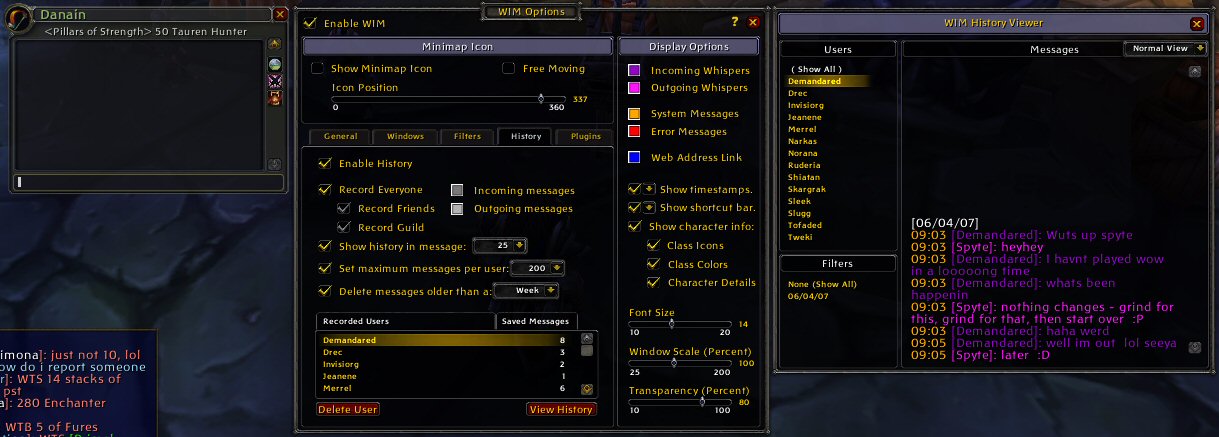
WIM (WoW Instant Messenger) (table) (top) (curse)
Whisper management and archiving
• /wim
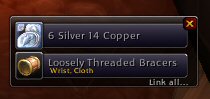
XLoot (table) (top) (wowace)
Replacement for the looting window, keeps loot window under the cursor
• /xloot
• /xloot options - opens the main XLoot options window
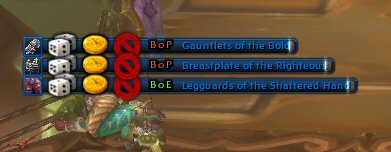
XLootGroup (table) (top) (wowace)
Replacement for the 'Loot Roll' window while grouped
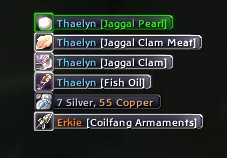
XLootMonitor (table) (top) (wowace)
Tracks loot history, either solo or in groups
XPBarNone (table) (top) (wowinterface)
XP bar replacement
• /xpbarnone, /xpbn
• /xpbn config - opens the main XPBarNone configuration window
Can be set to display either XP or Reputation (and display the one not chosen when the bar is moused over)

ZMobDB Advanced4 (table) (top) (wowinterface)
Animated unit portraits
On lines 104 and 113, changed 'GetAutoLootToggleKey()' to 'GetModifiedClick("AUTOLOOTTOGGLE")'
On line 40 of Core.lua, "crowd-controled" changed to "crowd-controlled"
Due to a number of unfortunate circumstances, I find myself the past few years materially poorer than I have ever been in my life (zero income for well over a year). Not poor as in, "Aww man, there are two new PC games coming out next month and I can only afford one", or, "I would've preferred the 400gb hard drive, but I had to settle for the 250gb one"; but poor as in, "Cool, there's bread and milk in the kitchen, too bad now we don't have a phone", and "Oh, hi Mr. Repo Man! Let me get those keys for ya - do you know Emilio Estevez?".
I tell you this, a compete stranger, not to elicit pity, but simply to let you know my situation. Like most net-folks, I've supported a few of my favorite online sites/webcomics/addons/whatever over the years - but usually only when I was able to throw, say, $10 or $20 their way. It would have never occurred to me to donate just a dollar or two, because "What difference would a dollar make?"
In my case, just a dollar really does make a difference. Over the course of a month, that can help pay my WoW subscription, or the hosting fee for TheMook.Net, or even one more gallon of milk or box of cereal.
So - if the thought of making a donation has never before crossed your mind, that's cool, sorry to bore you with this; but if you have thought before "Hey, neat compilation, I'll throw the guy a PayPal buck" and then decided "Why bother, it's only a dollar" ... please reconsider. : )
There are a lot of other ways you could throw me a bone too (follow link).
Anyway, thanks for reading, thanks for enjoying the MookUI, and thanks for blocking this entire section from your memory if seeing someone who needs help asking for it bothers you.
See ya in Azeroth!
Here are some of the many macros I use to help the game run smoother - most are Mage-specific, but could be modified easily for use by other classes and abilities.
Counterspell
Will cast Counterspell immediately, even if you're in the middle of another spell:
/stopcasting
/cast Counterspell
Eat/Drink
Eat and drink at the same time:
/use Conjured Glacier Water
/use Conjured Croissant
ETA
Uses the EnhancedFlightMap AddOn to send my ETA to wherever I'm flying to the Party chat
/efm report party
Frame Finder
Running this macro while hovered over any frame will display the name of the frame in your chatbox...useful for trying to determine what AddOn a particular screen element belongs to
/script ChatFrame1:AddMessage("You are hovering over frame: " .. GetMouseFocus():GetName())
Log In Prep
I use this when I first log in - it buffs me with Arcane Intellect and Molten Armor, then conjures a Mana Emerald and Mana Ruby, then restores me back to full mana by casting Evocation, and finally conjures three stacks each of water and food before drinking a Conjured Glacier Water:
/castsequence reset=240 Arcane Intellect, Molten Armor, Conjure Mana Emerald, Conjure Mana Ruby,
Evocation, Conjure Water, Conjure Food, Conjure Water, Conjure Food, Conjure Water, Conjure Food
/use Conjured Glacier Water
Polymorph Focus
My favorite polymorphing macro - it sets your current target to be your focus if you don't already have a focus target, then polymorphs it; if you do already have a focus target, the macro will simply recast polymorph on your focus target. Works great - you target A, hit the macro, A becomes your focus and gets polymorphed, you move on to target B (and C, etc.) while killing, before your polymorph is up hit the macro again, it will poly your focus target (A) without un-targeting your current combat target.
/clearfocus [target=focus,dead]
/clearfocus [target=focus,noexists]
/focus [target=focus,noexists]
/script SetRaidTarget("focus", 1)
/cast [target=focus] Polymorph
/stopmacro [nogroup]
Random Pet
Calls one non-combat pet at random from those I have in my bag
/userandom Golden Dragonhawk Hatchling, Worg Carrier, Diablo Stone,
Netherwhelp's Collar, Smolderweb Carrier
Shield
Handy for when you're in trouble, this macro will cast Ice Barrier on the first press, then Mana Shield on the second press (within 30 seconds)
/castsequence reset=30 Ice Barrier, Mana Shield
These macros manipulate the UI itself, showing or hiding various windows and information depending on how I click. The underlying structure can be tweaked to match your own UI, but these macros will only work as written below if the last Bartender3 Action Bar (the one containing buttons 109 - 120) holds the following macros:
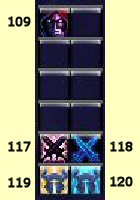
I also have a number of Chat Windows and associated eePanels:
And, finally, I have two normally hidden AddOns and associated eePanels:
So, how does all of this interact? It revolves around a single button, Button 109, which contains the 'Trigger' macro:
Here are the macros themselves:
Trigger
/click [button:1] BT3Button119; [button:2] BT3Button120; [button:3] BT3Button117; [button:4] BT3Button118;
Recount
/recount toggle
/script if eePanel7:IsShown() then eePanel7:Hide() else eePanel7:Show() end
Eavesdrop
/script if EavesDropFrame:IsShown() then EavesDropFrame:Hide() else EavesDropFrame:Show() end
/script if eePanel8:IsShown() then eePanel8:Hide() else eePanel8:Show() end
Open
/script ChatFrame4:Show()
/script eePanel4:Show()
/script ChatFrame_AddMessageGroup(ChatFrame4, "PARTY")
/script ChatFrame_RemoveMessageGroup(ChatFrame3, "PARTY")
/script ChatFrame4:AddMessage("Party Chat - ON")
Close
/script ChatFrame4:Hide()
/script eePanel4:Hide()
/script ChatFrame_AddMessageGroup(ChatFrame3, "PARTY")
/script ChatFrame_RemoveMessageGroup(ChatFrame4, "PARTY")
/script ChatFrame3:AddMessage("Party Chat - ON")
Quick Combat Clip (0:35) - version MookUI_10-30-2007 (NOT the current version)
A short clip showing the MookUI "in action", to give a better feel for how it runs during gameplay.
In Action 01 (1:39) - version MookUI_05-23-2007
A short clip showing the MookUI "in action", to hopefully give a better feel for how it runs during gameplay than a screenshot can.
Setup 'Quick Start' (9:41) - version MookUI_02-02-2007
A clip showing me go through the steps detailed in Quick Start, setting up a "barebones" MookUI in about 10 minutes.
Though it's from an older version of the compilation, the majority is still applicable.
Short Combat Clip (1:09) - version MookUI_01-17-2007
Just a short example of what the MookUI can look like while in combat, and also how Soundtrack can be used (all audio in the clip is from in-game, I didn't add anything later)
Interface Tour (1:37) - first public 'beta' version of MookUI
This is a quick overview and tour of the MookUI from November 2006. Many of the AddOns are different now, as is some of the structure, but might still be useful to get a 'feel' for the MookUI.
All original content © 2003-2007 Mook - All rights reserved.